



Guías
Las 5 mejores herramientas de traducción en vivo para Microsoft Teams [probadas y comprobadas]

Viraj Mahajan
August 12, 2025

Updated 2026: This article was originally published in 2025 and updated in February 2026 to reflect how best AI live translation for Teams have actually evolved. We did in-depth research to update the article based on the new features of each tool. The list of real-time translation tools includes JotMe, Interprefy, Kudo, DeepL Voice, and Wordly.
Brief Answer: The best live translation apps for Microsoft Teams are JotMe, Interprefy, Talo, Kudo, and DeepL Voice. Each tool serves different needs and offers different functionalities for you to make the best choice.
Do you struggle communicating with your global team during Microsoft Teams meetings in 2026?
Well, tell us about it. Language barriers in Teams meetings can make communication challenging, especially when it comes to understanding and translating work details, and when your global communication happens on Microsoft Teams.
The quickest fix for this is to add live translation. Although Microsoft Teams offers a built-in translator to translate meeting speech into 40 languages, this feature is only available with Microsoft Teams Premium. While larger teams that communicate exclusively on Teams might benefit from this investment, smaller teams and companies that don’t use Microsoft Teams as regularly may find this a tad unnecessary.
We’ve created a list of the best AI live translation tools for Teams meetings that are affordable and efficient. We tested the functionalities of over 20 tools for a week and picked the top 6. This is what we found:
- At $10/month (billed annually), JotMe offers real-time translation in 107 languages along with post-meeting tasks, notes, and summaries.
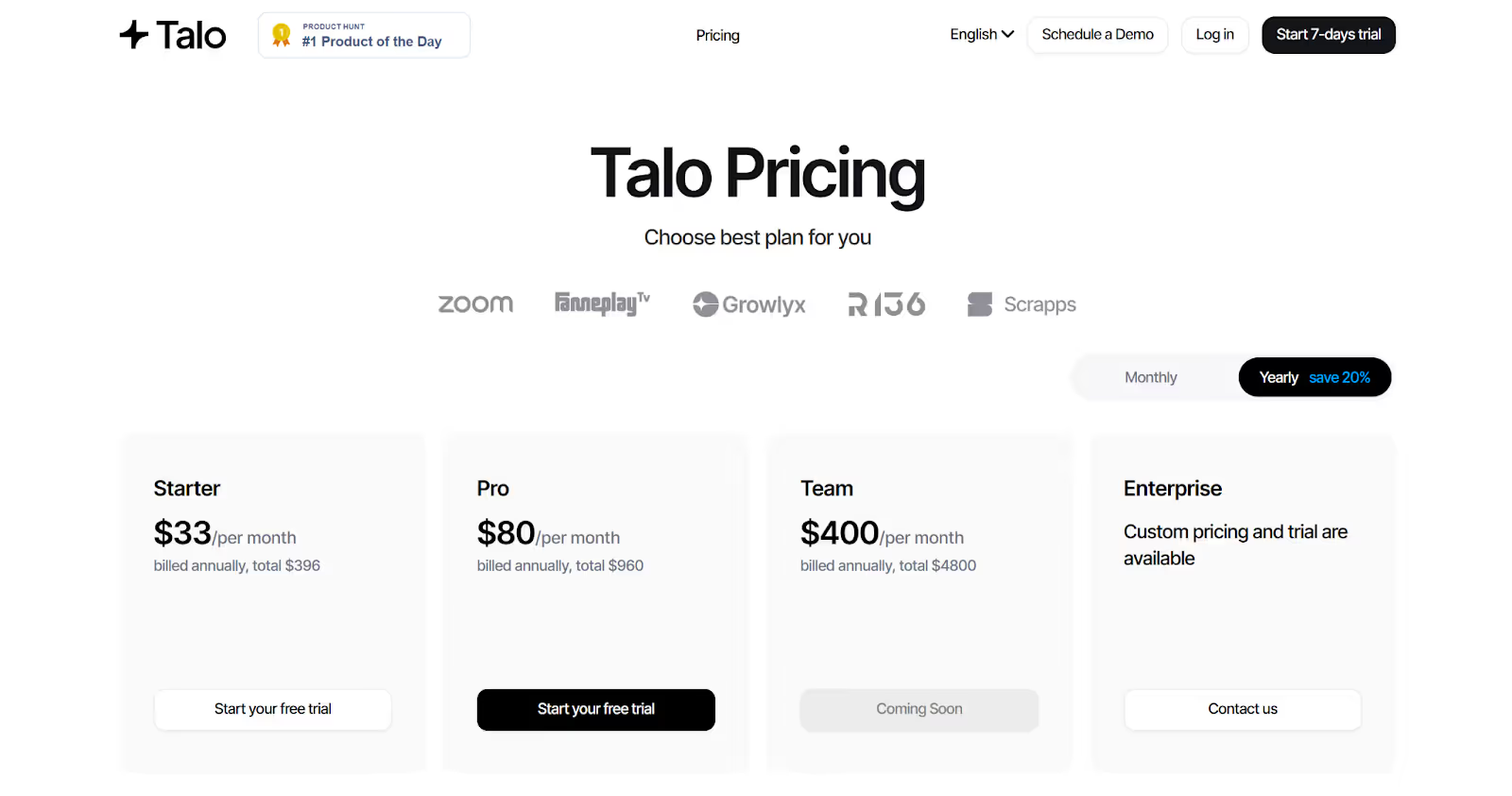
- Talo’s pricing plan starts from $33/month and offers translation in 60 languages.
Each of the tools offers something unique. But if you’re looking for a tool that provides accurate and contextual translation and transcription, along with AI note-taking and post-meeting summaries, you should check out JotMe.
In this comprehensive article, we provide a detailed guide to the best AI live translation tools for Microsoft Teams, as well as other features they offer.
Quick Recommendations Based on Use Cases
Here’s a quick recommendation for the AI live translation tools for 2026 before diving into detail:
- JotMe: Ideal for AI-powered live meeting translation
- Interprefy: Best for live multilingual translation and interpretation
- Kudo: Great for live speech translation and human interpretation
- Talo: Ideal for quick, real-time translation for video calls
- DeepL Voice: Known for real-time AI voice translations for global meetings
- Wordly: Ideal choice for large-scale events and in-person meetings
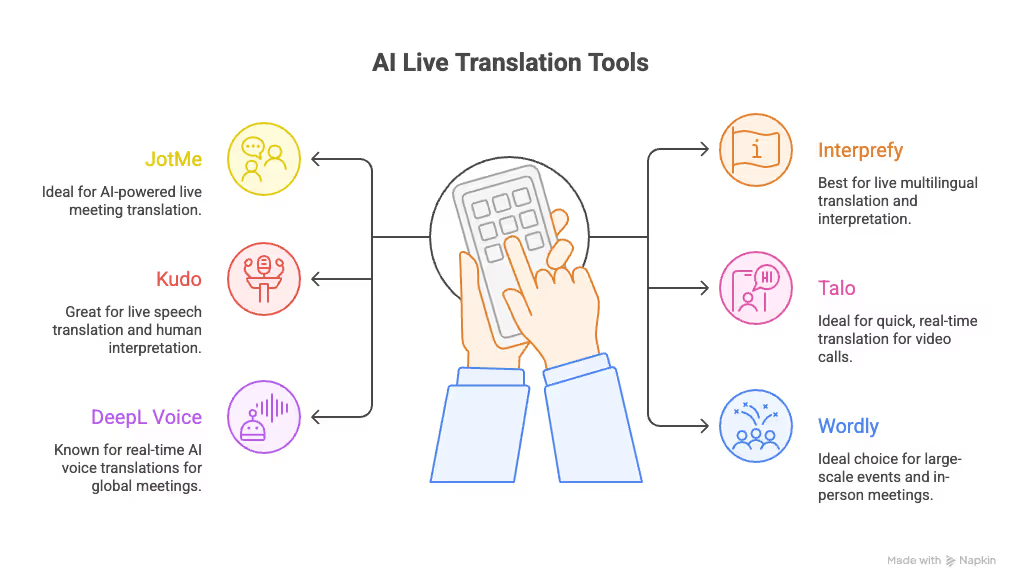
Best AI Live Translation Tools for Microsoft Teams at a Glance
How Does the Translation in Microsoft Teams Work?
Microsoft Teams enables real-time meeting translation using advanced AI to break down language barriers. It lets users communicate and collaborate across languages. However, Microsoft Teams misses context often when it tries to translate what's being said. That's why users prefer third-party tools like JotMe, that does contextual translation instead of just word-to-word. As of July 2025, Teams offers two primary translation features: AI-powered captions/subtitles and a next-generation “Interpreter” mode that can simulate your voice in up to nine languages, making multilingual meetings smoother than ever.
Here is how the translation process works in Microsoft Teams in two formats.
Live AI Captions & Subtitles
- Activation: During a Teams meeting, participants can enable live captions by selecting the “More” menu (represented by three dots), then choosing Language & speech > Turn on live captions.
- Operation: Teams uses Microsoft Speech Translation technology, powered by Azure Cognitive Services, to transcribe what’s being said and instantly translate the speech into the caption language chosen by each user.
- Supported Languages: As of mid-2025, this feature supports over 30 caption languages and continues to expand steadily.
AI Interpreter Mode (Voice Translation)
- How it Works: Introduced in early 2025, the AI Interpreter mode allows meeting participants to speak in their own language. AI translates and delivers the content in the selected language using neural speech synthesis to simulate the original speaker’s voice, with preserved tone and pace.
- Language Support: The initial rollout supports nine popular languages, including English, French, German, Italian, Japanese, Korean, Portuguese, Chinese, and Spanish, with plans to expand further.
- Setup: Organizers enable the Interpreter feature when scheduling a meeting by toggling “Enable language interpretation” in the meeting options, then assign interpreters (for human-assisted channels) or rely on fully automated AI channels. During the call, participants choose their preferred language channel from the audio settings and hear the translation in real time.
- Privacy Control: The AI voice simulation requires user consent, provided via an in-meeting prompt or user settings, as voice cloning and translation happen only with explicit approval.
Limitations of the Translation Feature in Microsoft Teams
Teams’ built-in translation is convenient but has some constraints. For example, it can only show one target language at a time per attendee, and users must manually select their preferred caption language. It requires Teams Premium (after the initial preview), as there is no free version of live translation provided in standard Microsoft Teams.
Microsoft Teams also caps interpretation to 16 language channels per meeting, which can be insufficient for very large international events. Meeting recordings and transcripts will only contain the original-language audio/transcript. In summary, Teams’ built-in translation is useful for basic multilingual support, but it isn’t as flexible as dedicated solutions.
- One Language at a Time: Each attendee can only view captions in one preselected language. Multiple caption tracks (for simultaneous translation into multiple languages) aren’t natively supported.
- Teams Premium Needed: The live translation feature is currently only available with a Teams Premium license; free or basic Teams plans do not include it.
- Text-only Output: Microsoft Teams provides translated captions/subtitles, not real-time voice interpretation. It’s essentially speech-to-text-to-speech-through-text.
- Limited Language Support: About 40 spoken languages are supported for live translation.
- Interpreter Limits: Microsoft Teams allows up to 16 interpreter channels (one per language pair), so very multilingual meetings may need external services.
- Multilingual Transcripts Unavailable: Recorded meetings only capture original audio, and translated captions are not saved in the transcript by default.
Expert-Recommended Live Translation for Microsoft Teams
People working in global teams and international students doing an exchange semester, for example, rely heavily on live translation tools for effective communication. According to Grand View Research, the global machine translation market size is expected to reach US$2,719 million by 2030, growing at a CAGR of 13.5% from 2023 to 2030.
Most professionals and students prefer a tool that handles tasks in the background, such as capturing every word, translating in real-time, and creating summaries. We’ve made a detailed list of the six best live translation tools for Microsoft Teams that’ll help you translate multilingual audio for better understanding.
JotMe: AI-Powered Live Meeting Translator
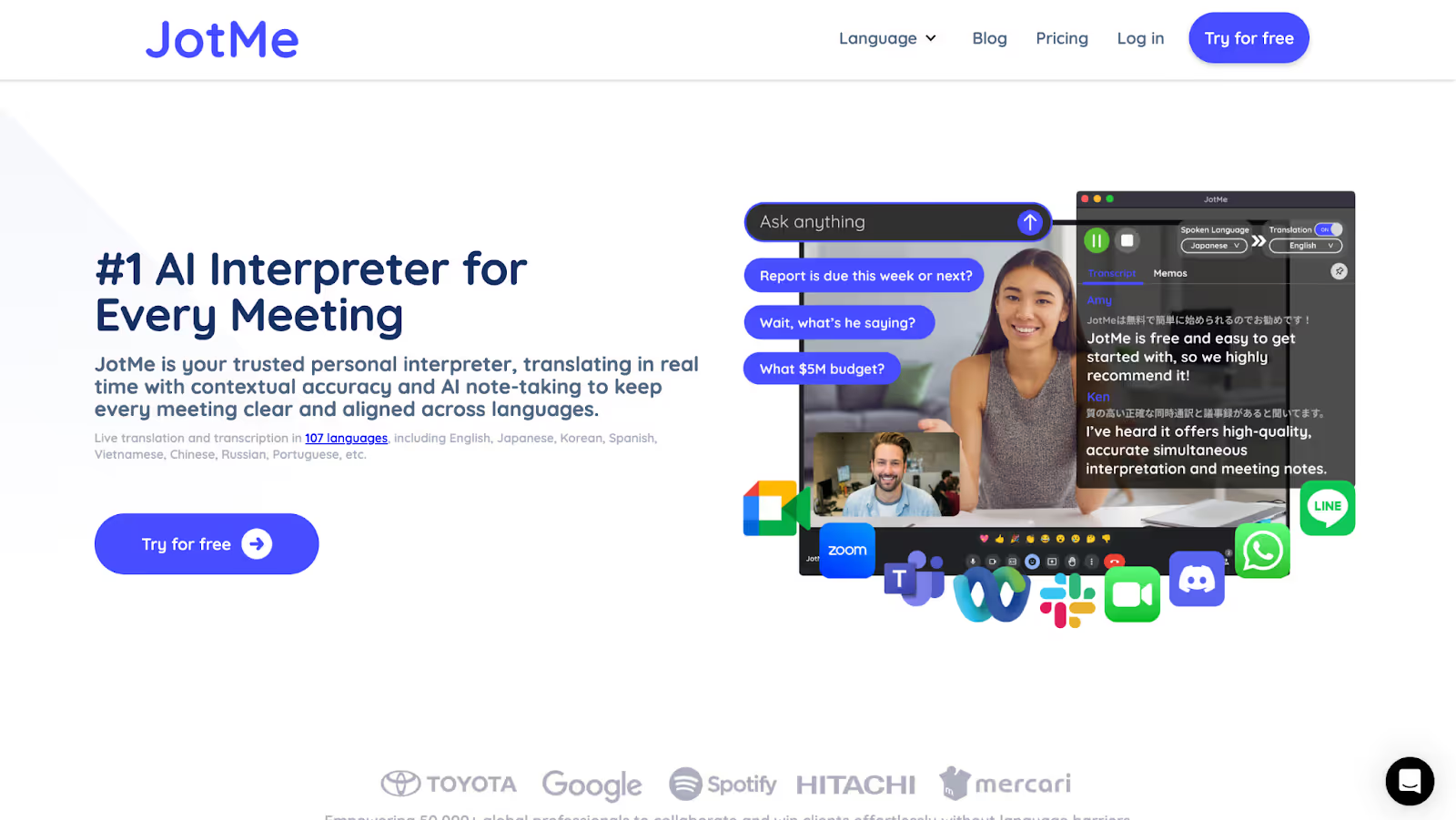
If you've ever been on a Microsoft Teams call with international teammates, you know how fast things can get lost in translation, literally. People speak quickly, switch between languages, or use technical jargon that automated tools often miss. That’s exactly why we tested JotMe, not just once, but over several internal calls and cross-border project check-ins.
JotMe is one of the few tools that truly feels like it was built for real-world business conversations. It’s not a meeting bot. Instead, it runs right on your desktop, either as an app or a browser extension, and listens directly to your system audio. That means no awkward “joining a bot to your meeting” or worrying about permissions. It just works.
In our testing, JotMe delivered accurate, real-time transcriptions and translations in Microsoft Teams meetings, even when people switched languages mid-call. What stood out most was how well it handled context. Unlike other tools that do word-for-word translation, JotMe seemed to understand industry terms and conversational nuances, probably thanks to its AI model that incorporates contextual and domain-specific knowledge.
JotMe Features
Live Caption Translation
With JotMe, you select both the language spoken and the one you want to translate into, and just like that, it overlays captions in real time. It supports over 107 languages, so whether you’re on a call with teammates in Tokyo or Berlin, you’re covered. We loved how smooth the translation flow felt. There were barely any delays, and the captions updated fluidly as people spoke.
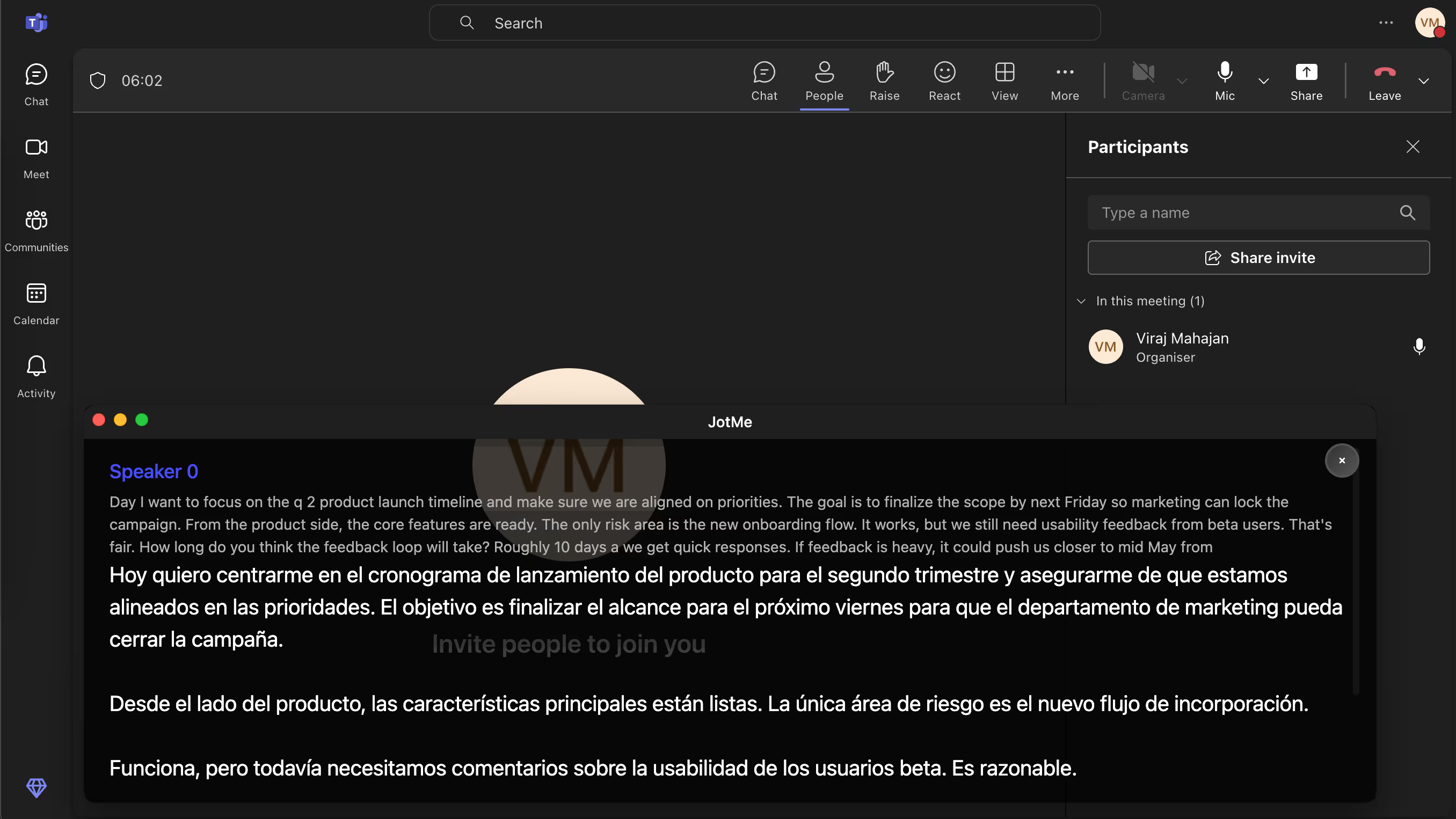
Contextual Translation That Reads Like a Human
Most tools just go word-by-word and hope it makes sense. JotMe goes deeper. It analyzes the tone, sentence flow, and broader context of the conversation to give translations that actually sound human. For instance, during a project retrospective, someone used a nuanced Japanese corporate apology, and JotMe translated it in a tone-perfect, culturally aware way. It didn’t just dump a literal translation, but it also expressed the speaker’s intent, emotion, and professionalism.
It also breaks down transcriptions and captions into bullet points, making them easier to read, skim, and refer back to, which is especially helpful during dense, multi-topic meetings.
Consider these Korean statements talking about weather:
A: 습니다. 날씨에 대해 이야기해 봅시다.
B: 자, 여기 날씨는 아침부터 흐리고, 아마 며칠 동안 비가 올 것 같습니다.
C: 여기서는 갑작스러운 날씨 변화가 많이 일어나고 있습니다, 여러분.
A traditional line-by-line translation might read it like this:
X: Yes. Let's talk about the weather.
Y: Now, the weather here has been cloudy since morning, and it's probably going to rain for a few days.
Z: There are a lot of sudden weather changes happening here, folks.
But JotMe’s contextual translation delivers:
“Cool. We’ll talk about the weather. Alright. So the weather over here has been cloudy since morning, and it will probably rain for a couple of days. Lots of abrupt weather changes are happening over here, guys.”
This output feels natural and reflects how people would casually talk about the weather in English.
No Bots, No Permissions
We loved how it just... worked. JotMe operates at the OS level, so it hears exactly what you do. That means no messing with calendar invites or adding a bot to your meeting. It captured audio from Teams and even prerecorded product demos we played back. This level of simplicity is rare and makes it easy for everyone on the team to get started quickly.
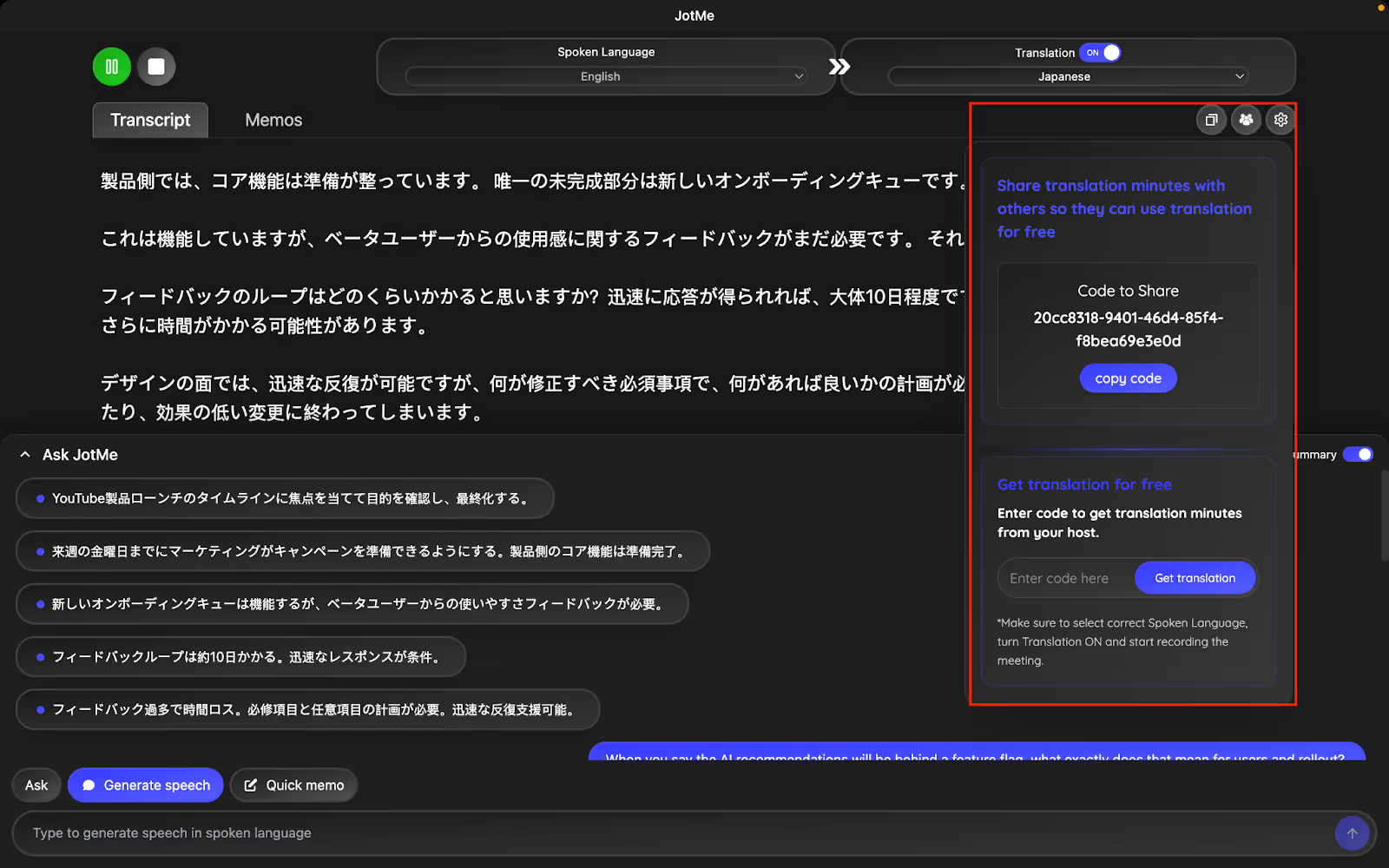
Sharing Translation Minutes
With JotMe’s meeting minutes sharing, the participants can get the translation minutes with a simple code. Even if you don’t have a JotMe paid subscription, you can enter that code in “Get Translation” in the JotMe pop-up on the right and be able to record the meeting, transcribe, and translate the meeting minutes. It's great for teachers or professionals who want to share real-time translation minutes with their students or global clients without asking them to invest in the paid JotMe plan.
AI Chat
JotMe’s AI Chat feels like having a quiet expert sitting next to you during the call. At any point, we could ask questions about what was being discussed, clarify a term, revisit a point from earlier, or get quick context, without opening another tab or breaking focus. For example, when someone mentioned that AI recommendations would be behind a feature flag, we asked JotMe what that meant for users and rollout, and it instantly explained it in clear, meeting-specific terms.

Real-Time Summaries
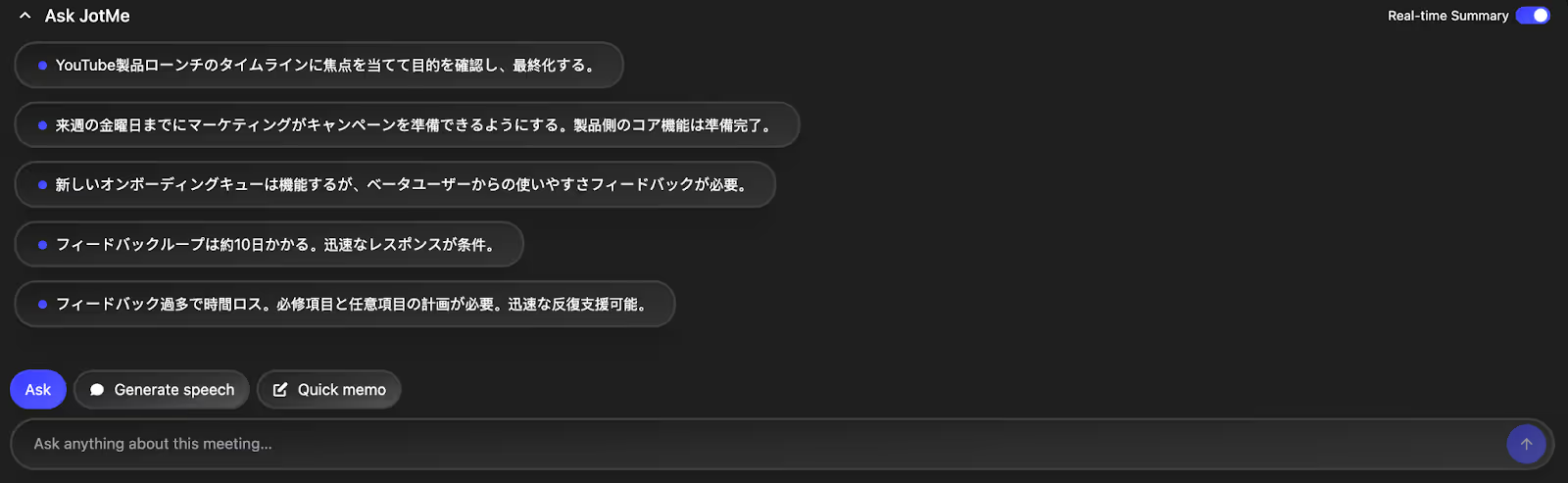
Instead of waiting until the meeting ends, JotMe now generates live summaries as the conversation unfolds. Key decisions, discussion points, and action items appear in concise bullet points, making it easy to stay oriented during long or fast-moving calls. We found this especially useful in multi-topic meetings, where you can quickly glance at the summary to see what’s already been covered and what still needs attention.
Real-Time Pronunciation for Natural Multilingual Replies
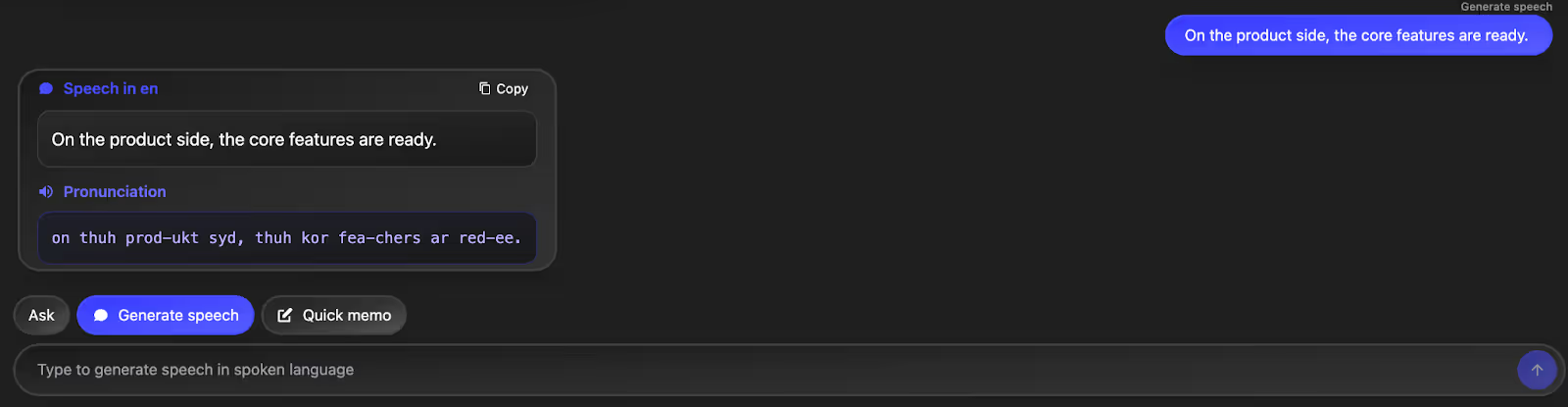
When you need to respond in another language but aren’t confident about pronunciation, JotMe steps in. You can paste a sentence, choose the target language, and get clear, speakable pronunciation guidance. During one meeting, we drafted a response in English and used JotMe to get Japanese pronunciation, which helped us deliver the message naturally and confidently, without sounding robotic or pausing to search elsewhere.
JotMe has also launched its Android and iOS mobile apps designed for one-on-one, real-world conversations where translation is needed on the go. You will find JotMe's voice-to-text Android app useful during travel, informal client chats, quick hallway conversations, and in-person follow-ups where pulling out a laptop isn’t practical. The mobile app focuses on live, contextual translation rather than rigid word-for-word output, and its built-in pronunciation feature helps you speak responses clearly and confidently in another language.
Updated JotMe Pricing Plans [2026]
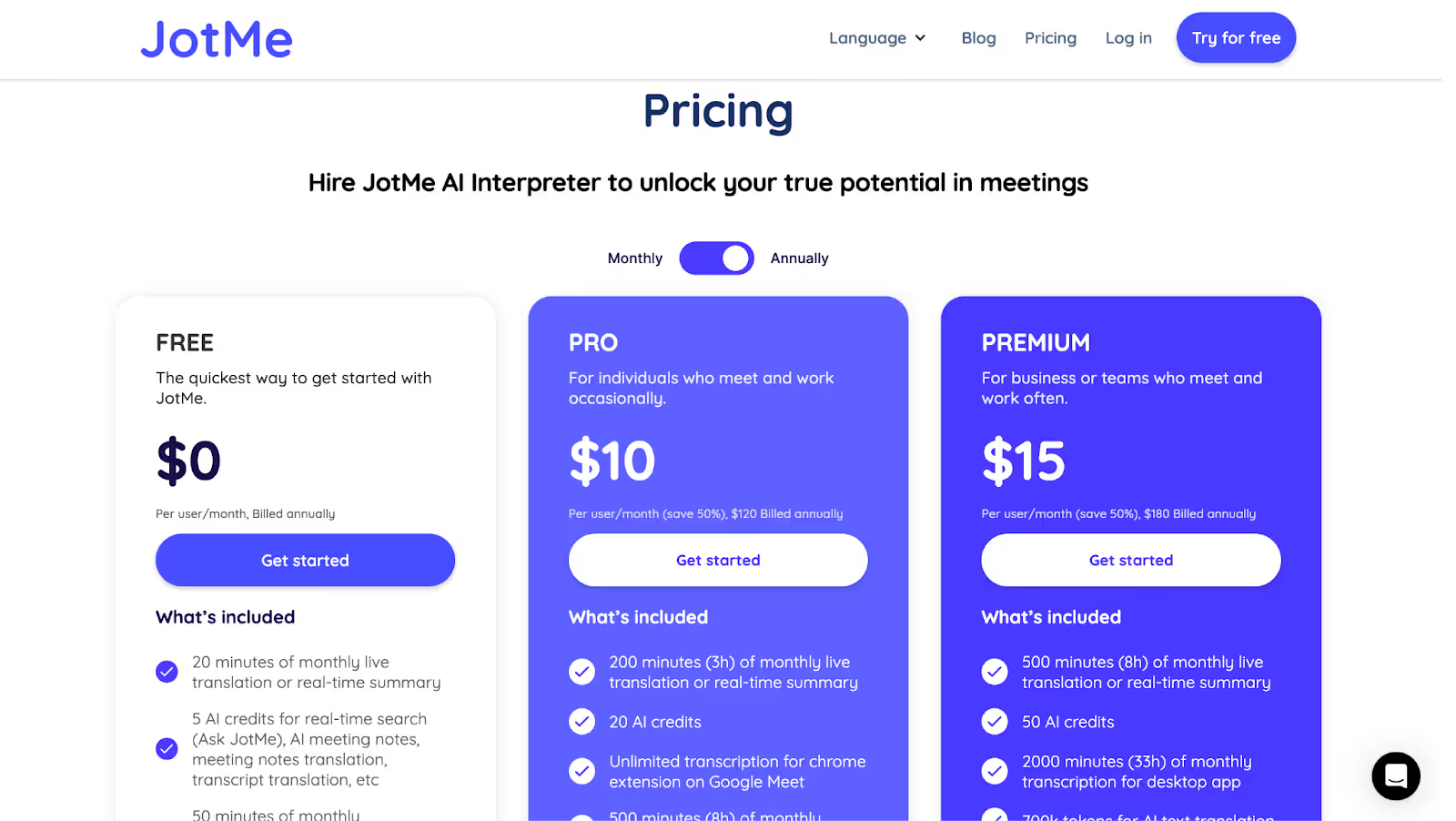
- Free Plan: 20 minutes of translation/month + 50 minutes of transcription.
- Pro Plan: $10/user/month (billed annually) for 200 minutes of translation, more transcription, and AI credits.
- Premium Plan: Offers 500+ minutes/month and team billing features, better for enterprise use.
- Prepaid Mobile Plan: Available as a one-time $50 purchase, this plan provides a fixed set of translation minutes that expire after one month.
- Enterprise Mobile Plan: For larger Microsoft Teams–driven organizations, JotMe provides an enterprise option with centralized management, expanded usage, and admin-level controls, along with integrations that support broader workflows like email, Slack, and Google Docs.
Pros
- Translations sound natural and professional, which is great for business settings.
- The AI insights, Q&A, and summaries make every meeting easier to digest and remember.
- We used it with Teams, Zoom, and Meet without needing to modify our workflow.
Cons
- For best results and high accuracy, JotMe requires stable and high-speed internet.
When to use JotMe
JotMe is perfect if your team works across time zones and languages and you want something that “just works.” We used it for weekly standups, regional syncs, onboarding calls, and even executive briefings. It shines in high-context, jargon-heavy conversations, like marketing, legal, or engineering, where accuracy and tone matter. If you want readable, real-time captions, bullet-point summaries, and AI that truly understands your meeting’s flow, JotMe is the tool to beat.
What makes JotMe especially practical is that the experience doesn’t stop at the meeting itself. When conversations move off Teams, into hallway discussions, client visits, or quick in-person follow-ups, the mobile app steps in with the same real-time translation and transcription support. If you want readable live captions, bullet-point summaries, and AI that understands the flow of conversation across both desktop and mobile, JotMe is hard to beat.
Interprefy: Best for Live Multilingual Translation and Interpretation
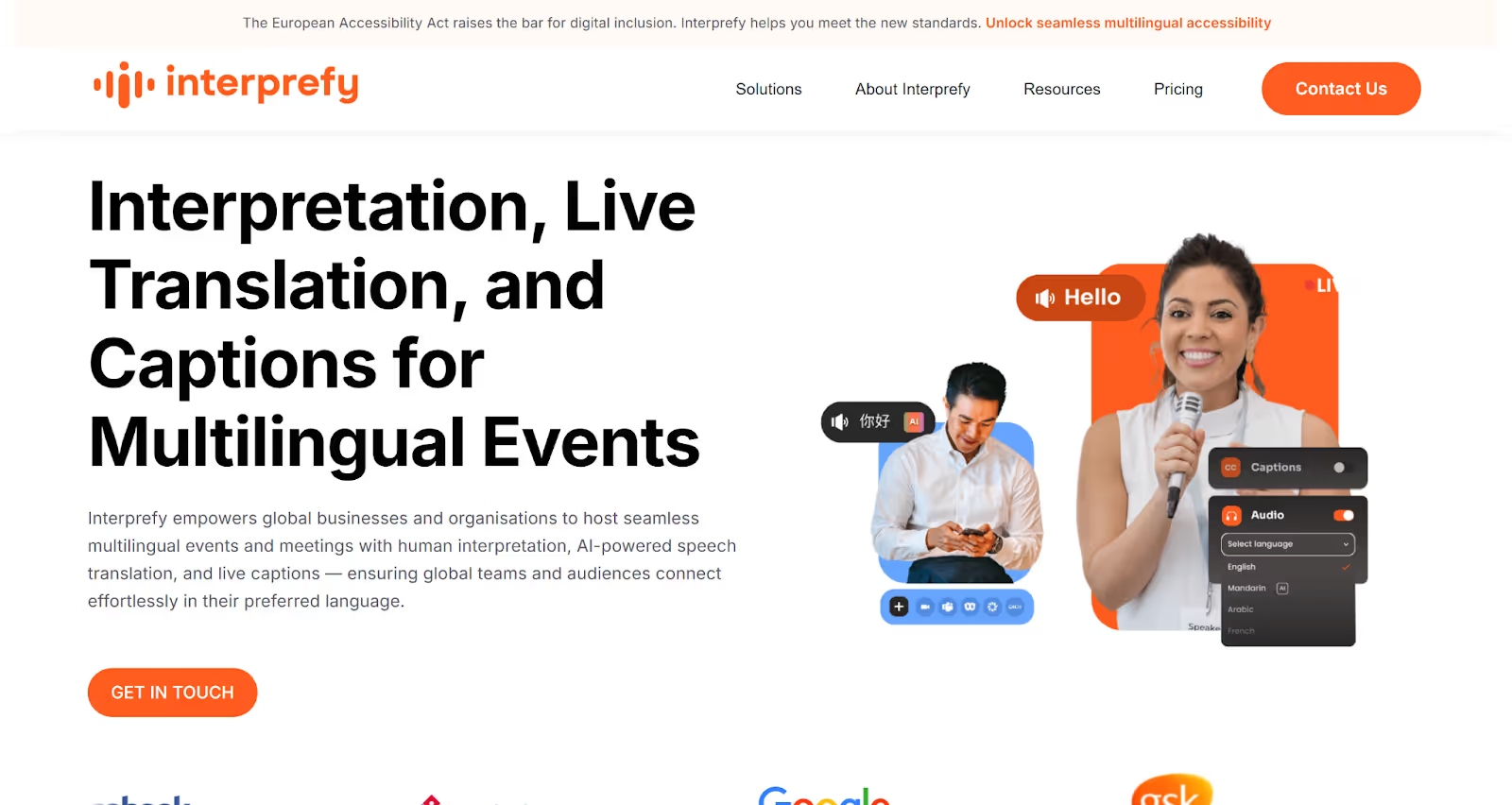
If you’re from a global business or organization and regularly conduct multilingual events and meetings, Interprefy is a great option. When we tested it in one of our Teams calls, we found that it delivers live translated subtitles in 80+ languages. Whether you’re hosting a virtual, hybrid, or in-person event, Interprefy’s human interpretation, AI-powered translation, and live captions make sure that teams and audiences connect effortlessly in their preferred language.
Interprefy Features
- Remote Simultaneous Interpretation(RSI): Interprefy RSI connects your event with top-tier interpreters globally to deliver high-quality and human interpretation in real time.
- AI Speech Translation: Interprefy’s AI speech translator provides real-time translation in multiple languages during live events and Teams meetings.
- Seamless Integrations: Interprefy integrates smoothly with multiple platforms like Microsoft Teams, Zoom, ON24, and more.
Interprefy Pricing Plans
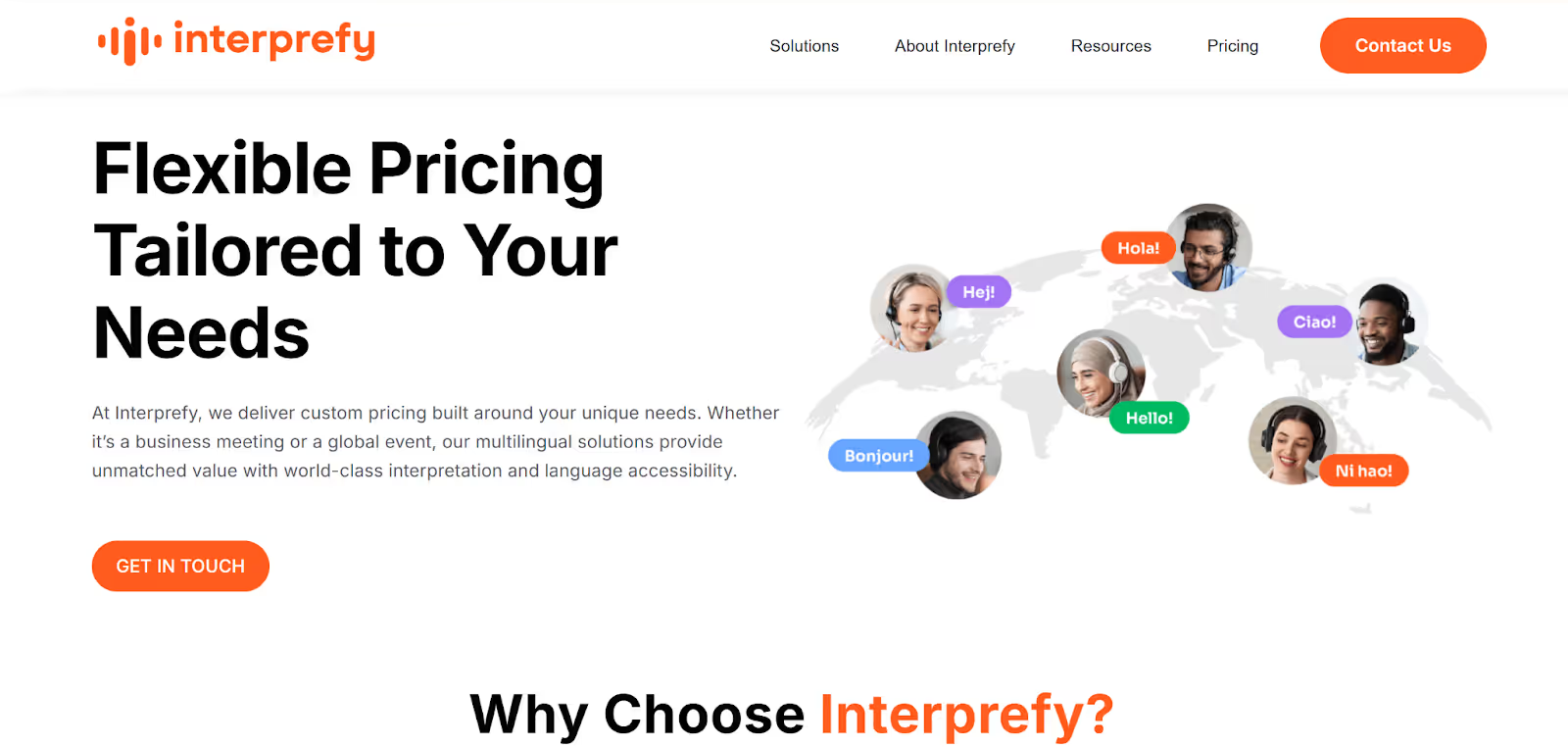
Interprefy does not list public pricing, but offers custom pricing built around your needs. You can choose from its list of three plans–Platform, Professional Services, and Interpreters.
Pros
- Interprefy provides virtual booths specifically designed to enhance the interpreter’s experience.
- Interprefy offers its own web conferencing platform and supports integration of 80+ platforms.
Cons
- Some users on G2 mentioned that its integration was not very smooth with their event platform.
- It does not offer transparent pricing, making it difficult for small teams to plan.
- Some users mentioned that it needs improvement in the speed of switchover and changing languages.
Kudo: Great for Live Speech Translation and Human Interpretation
Kudo is a great choice for students and educators who regularly attend training sessions on Microsoft Teams. Kudo has a native integration with Microsoft Teams, offering 200+ spoken and sign languages in human interpretation, as well as 60+ languages in AI speech translation and captioning. Kudo also allows you to add a custom glossary of your translation preferences.
Kudo Features
- AI Speech Translator: Kudo’s Speech Translator offers live-translated audio and captions in 60+ languages, making it perfect for Teams meetings, webinars, and training.
- Professional Interpretation: Kudo offers 12,000 interpreters for remote simultaneous interpretation in 200 languages.
- AI-generated Voice: Kudo AI lets you choose an AI-generated voice that imitates the natural flow of the speech.
Kudo Pricing Plans
Similar to Interprefy, Kudo doesn’t list public pricing. It is based on use cases like the recurrence of your Teams meetings and the length of your sessions.
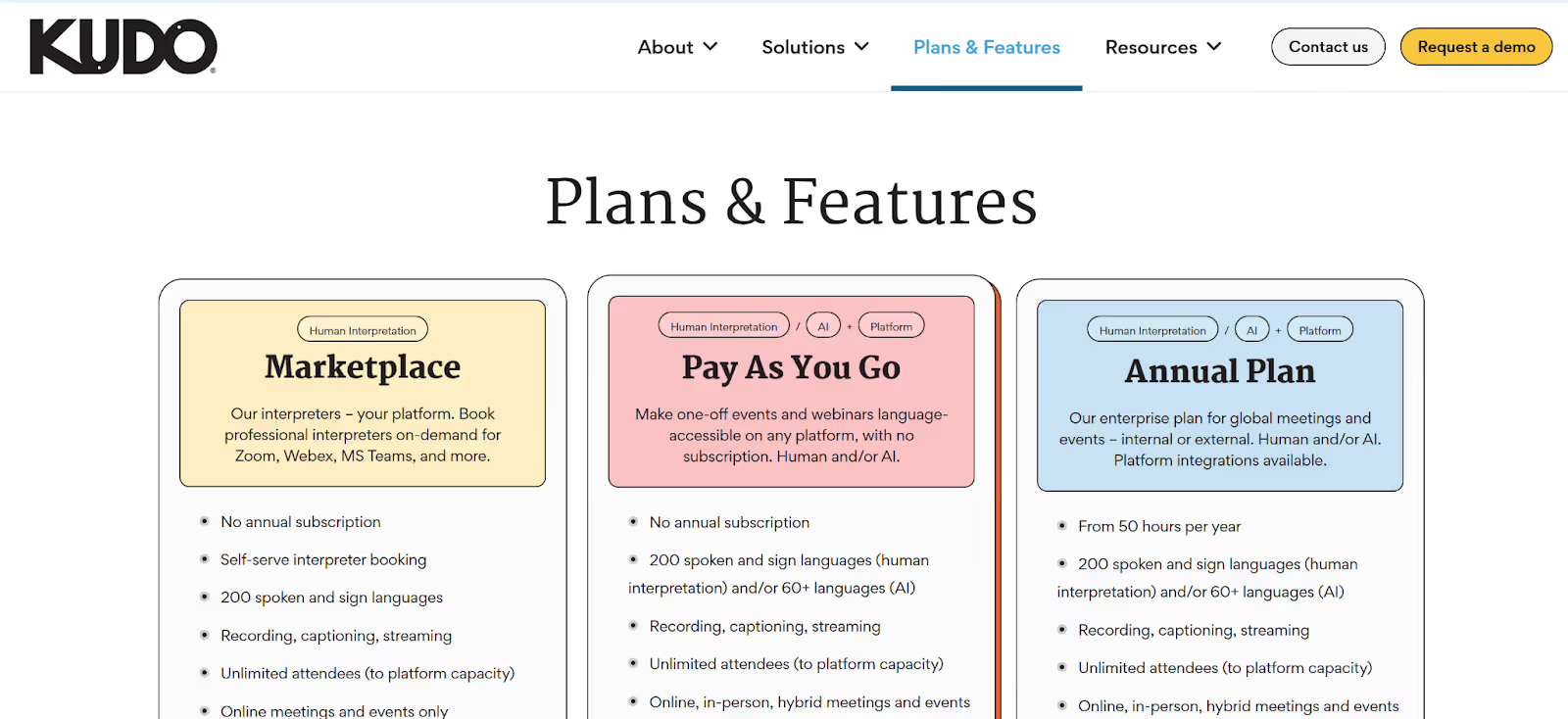
- Marketplace Plan: Kudo’s Marketplace Plan offers interpreter booking without any subscription. You can contact your interpreter on Zoom, MS Teams, or Webex.
- Pay-As-You-Go Model: The pay-as-you-go model is a decent plan for one-off events and webinars. You get 60 AI and 200 human interpretation languages.
Pros
- Kudo offers mobile applications available on iOS and Android.
- You can add up to 3000 attendees to an online meeting or event.
Cons
- The pricing plans are not transparent, which makes it difficult for budget planning.
- You need to contact the Kudo team for a demo, as it doesn’t offer a trial.
- It requires a stable internet connection, or users may experience lag.
Talo: Ideal for Quick Real-time Translation for Video Calls
We tested Talo in one of our Teams calls, and its AI translator felt surprisingly natural. Talo’s single AI-powered bot listened and translated every participant’s speech seamlessly. When you try Talo, you’ll discover that it instantly gives real-time translation in 60 languages.
Talo Features
- One Bot for Multilingual Meetings: Talo’s single AI-powered bot seamlessly translates every participant’s speech in a Teams meeting and doesn’t need multiple accounts.
- Privacy-first Security: Talo’s security framework aligns with SOC2 and ISO 27001, offering encryption and secure cloud infrastructure.
- Instant Translation in 60+ languages: Talo’s advanced AI translation technology gives accurate and real-time conversations in over 60 languages.
Talo Pricing Plans
Free Plan
- Talo offers a 7-day free trial with 20 minutes of live translation.
Paid Plans
- Talo’s Starter plan starts at $33 per month and offers 1140 minutes per year and translation in 60 languages.
- Talo’s Pro plan starts at $80 per month with 4800 minutes per year, plus additional minutes at $0.25 per minute.
- Talo’s Team plan offers 30,000 minutes per year at the cost of $400 per month, along with additional minutes at $0.2 per minute.
Pros
- Talo offers smooth integration with video conferencing tools for businesses.
- Talo requires minimal setup and offers accurate real-time translation.
Cons
- You need to give your credit card details before accessing the free trial.
- Small teams may find the pricing plans to be expensive.
- Talo doesn’t offer a browser-based version.
DeepL Voice: Real-time AI Voice Translations for Global Meetings
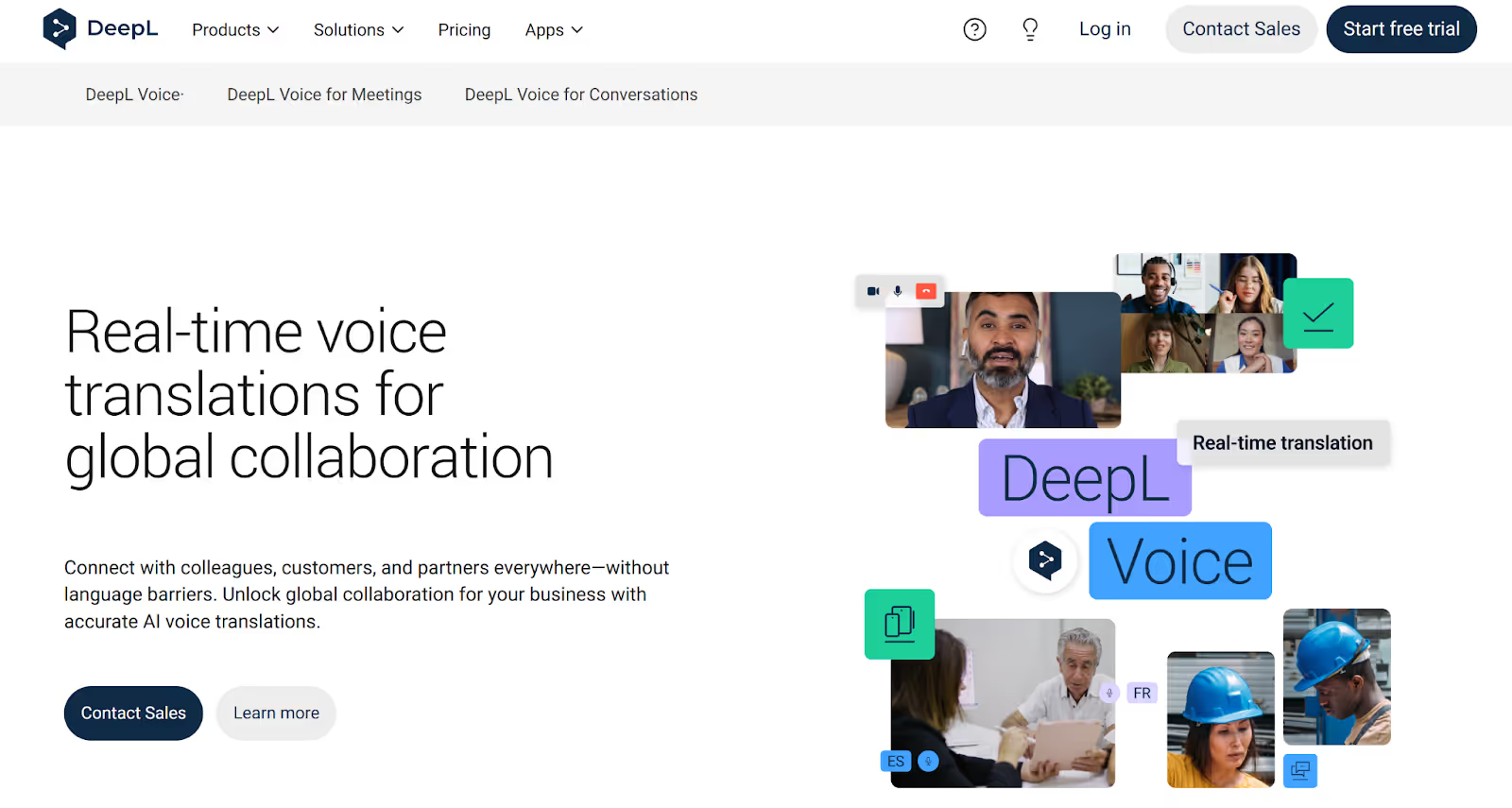
While researching DeepL Voice, we found that it’s not just another translation add-on. It is designed for global teams to connect with colleagues, customers, or partners without language barriers. DeepL Voice is fully integrated into Microsoft Teams and offers live captioning in 30 languages.
DeepL Features
- DeepL Translator: DeepL Translator’s AI technology provides accurate translations for documents, speech, images, and text in over 30 languages.
- DeepL API: Developers and technical teams can easily integrate accurate and secure language AI for translation or writing.
- Simultaneous Transcription: In DeepL Voice, captions are not just translated but are also transcribed for reference and clarity.
DeepL Pricing Plans
DeepL Voice’s pricing plans are not disclosed publicly. You need to contact their sales team for a quote.
Pros
- You can create a personalized glossary of terms for accurate translations.
- DeepL Voice provides translated captions in over 30 languages.
Cons
- Some users on G2 have reported lag during high-bandwidth meetings.
- Informal expressions or cultural references aren’t caught very well sometimes.
- Insufficient customization for language and tone settings.
Wordly: Best for Large-Scale Multilingual Events and In-Person Meetings
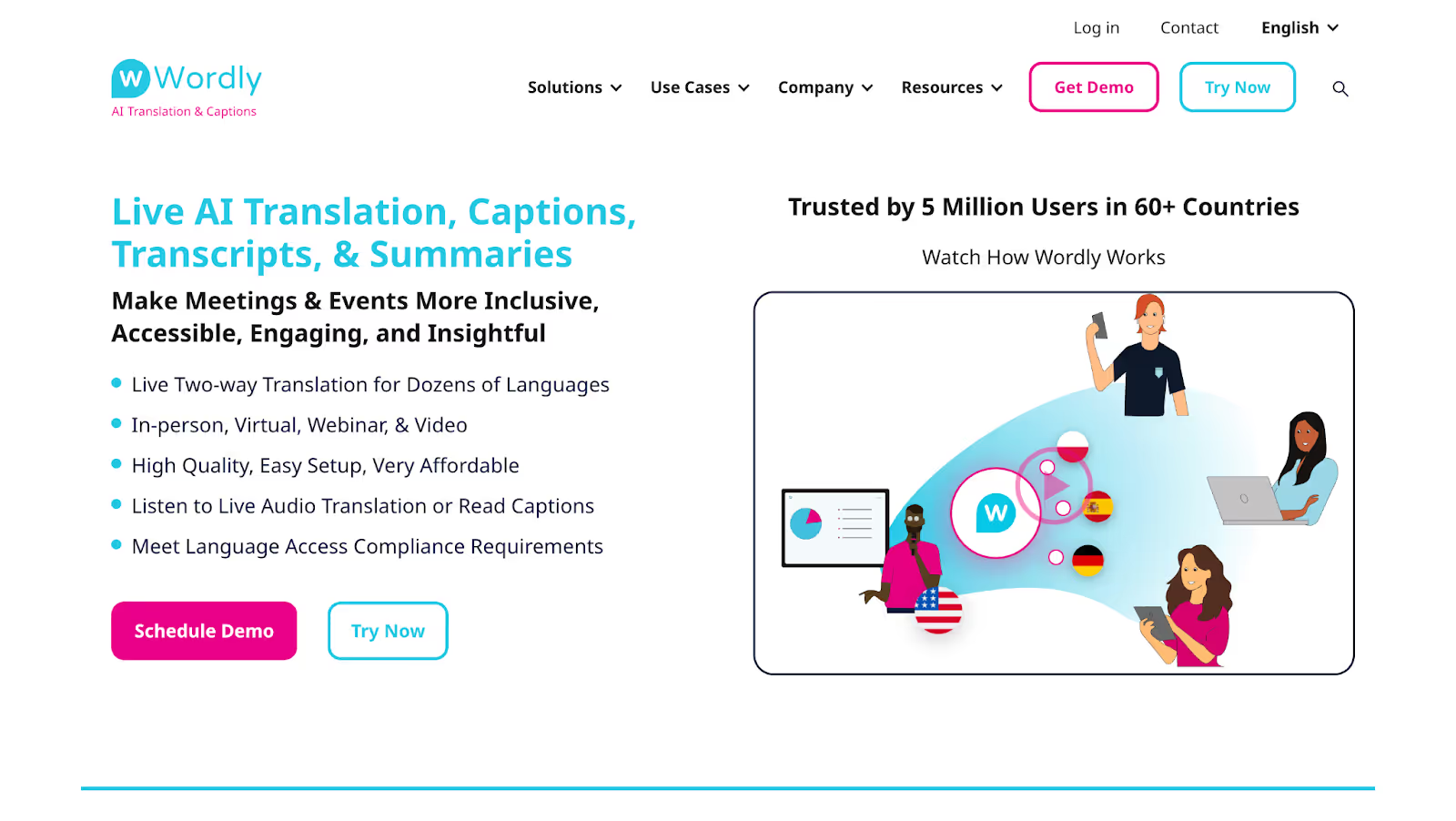
Wordly is built for large-scale events, not everyday meetings. It works well for conferences, global town halls, and hybrid trainings with hundreds of attendees. Participants join via a link or QR code, choose their language, and listen instantly, no downloads or setup. Speakers can present in their own language while audiences hear real-time translation.
Wordly Features
- Supports Dozens of Languages: Wordly handles a wide range of languages and understands accents and dialects well, even when speakers switch languages mid-sentence.
- Custom Glossaries: Organizers can add, replace, or prioritize terms and acronyms so translations stay accurate in technical, legal, or corporate contexts.
- Real-Time Captions: Live captions appear on personal devices or shared screens, and translated transcripts are available shortly after sessions for reuse or distribution.
Wordly Pricing
Wordly’s exact per-hour pricing isn't listed publicly, so you'd need to contact their sales team for a quote.
Pros
- Scales easily to large, multilingual audiences
- Enterprise-grade security and compliance
Cons
- No free trial or self-serve pricing
- Less transparent costs compared to some competitors
- Focused on event translation, not AI notes or post-meeting insights
Which App to Choose for Live Translation in Microsoft Teams?
Choosing the right tool depends on how you use Teams and your needs, whether it’s for speed, accuracy, or budget. Here’s a quick breakdown:
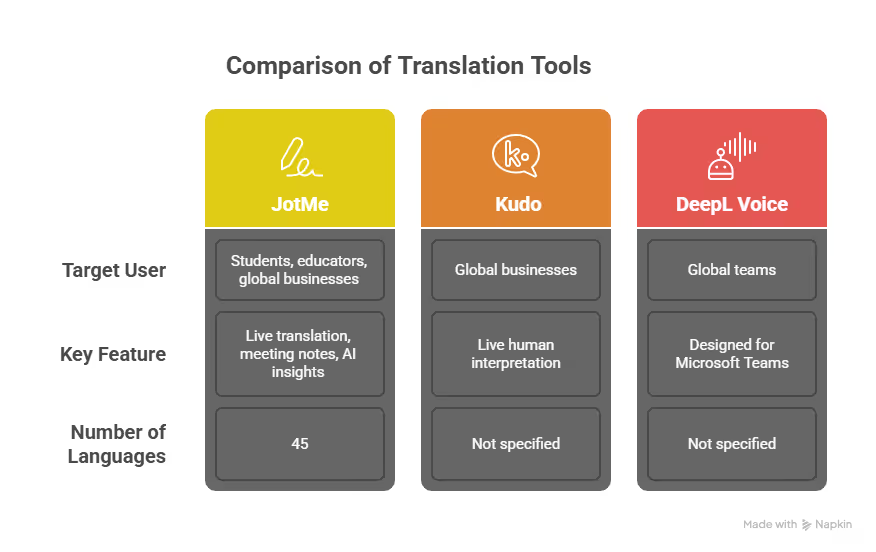
- If you’re a student or an educator attending multilingual classes or global webinars on Microsoft Teams, JotMe is a great choice. It’s a bot-free tool offering live translation in 107 languages and takes coherent meeting notes that highlight key points and concepts.
- If you run a global business or organization and need live human interpretation in your meetings, Kudo and Interprefy are decent choices for you.
- If you’re part of a global team looking to connect with customers and colleagues and need a tool designed specifically for Microsoft Teams, use DeepL Voice.
But here’s the thing:
If you require real-time translation, AI note-taking, and post-meeting summaries for your Teams meetings, JotMe provides the best of everything in a single tool. Moreover, it is sensitive to all cultural and tonal nuances to help capture what was said in a much better way than most tools that just provide a literal translation.
JotMe doesn’t need a bot to join the meeting. It captures audio directly from the system and does the work in the background. This is useful when you don’t want the host to know that a bot has joined the meeting on your behalf. Whether you use Microsoft Teams for international webinars or training sessions, JotMe offers easy setup and supports over 107 languages.
Try JotMe desktop and mobile app today and see how you can communicate easily with your colleagues or students across different languages.
FAQs
How do you translate in Microsoft Teams?
To translate in Microsoft Teams, first enable Live captions during the meeting (More actions ⋯ > Turn on live captions). Then open Caption settings > Language settings, switch on Translate to, and pick the target language. Teams will then display translated subtitles for whatever is being spoken in real-time.
What languages are supported for translation in Teams?
As of now, Teams supports translating spoken English, Chinese, Spanish, Arabic, and about 35+ other languages (for a total of ~40 spoken languages). In practice, the meeting organizer pre-selects which subtitle languages are available, and each participant can choose one. For the exact language list, see Microsoft’s documentation.
Is Teams live translation free?
No, Teams live translation (subtitles in another language) is currently free in preview, but once it is generally available, it will require a Teams Premium license for the meeting organizer. Teams’ captioning (in the spoken language) is free for all users. There are no per-minute translation fees beyond that.
Does Teams output audio or text for translation?
No, Teams provides translated text captions, not spoken audio. In other words, you read the subtitles on screen in your language. If you need audio interpretation, you would use a third-party service.
How to turn on translate in the Microsoft Teams meeting?
Turning on translation during your Teams meeting is quick. Click More options (three dots) in meeting controls. Select Language and speech, then choose your translation feature. For live captions, click Turn on live captions and select your caption language. For Interpreter (with Copilot), select Interpreter > Turn on for me and pick your listening language. Each participant independently chooses their translation language. The system automatically detects speech and provides instant translations.
Is there a JotMe mobile app for Teams-related conversations?
Yes. JotMe offers an Android mobile app built for real-world conversations that happen around Microsoft Teams meetings. JotMe supports live voice-to-text translation, contextual interpretation, and multilingual discussions, making it useful for in-person follow-ups or quick conversations when you’re away from your desktop.
Does JotMe work with Microsoft Teams meetings in real time?
Yes. JotMe works seamlessly with Microsoft Teams and starts translating as soon as the meeting audio begins. JotMe doesn’t require adding a bot or changing meeting settings, and it delivers live captions and translations without interrupting the flow of the call.
Can JotMe handle live Japanese ↔ English translation in Teams calls?
Yes. JotMe supports real-time Japanese and English translation during Microsoft Teams meetings. In our testing, JotMe handled business phrasing and conversational nuances well, delivering natural translations that preserved intent rather than producing rigid, word-for-word outputs.
How reliable is JotMe’s real-time translation on Teams, and how fast is it?
JotMe delivers high contextual accuracy on Microsoft Teams, even in jargon-heavy discussions. Translation typically appears within 3–4 seconds, which felt smooth in live calls and didn’t disrupt conversation pacing or decision-making.
Last updated on
April 16, 2026
Follow us on social media: