

小贴士
如何转录 Zoom 会议?

Viraj Mahajan
August 29, 2025

Do you miss key points in your Zoom meetings while trying to move the conversation ahead? We’ve all been there. You want to focus on the person on the other end of the call, and in the process, you might miss out on details. This can be easier if you enable live transcription in your meetings.
Zoom offers real-time transcription features for meeting audio and calls, but it also has some limitations, such as not being able to save the transcripts and inaccurate transcriptions. However, third-party tools like JotMe provide accurate live transcription and translation in 45 languages using NLP and also offer to store the transcript for future reference.
JotMe’s pricing plan starts at just $9/month and offers 500 minutes of transcription per month, post-meeting notes, summaries, and transcripts, multilingual transcription, and more.
To transcribe your Zoom meetings in real time, simply follow these steps:
- Install the JotMe app: Visit JotMe’s official website to download and install it on your device.
- Launch your Zoom meeting: Join your Zoom meeting and open JotMe.
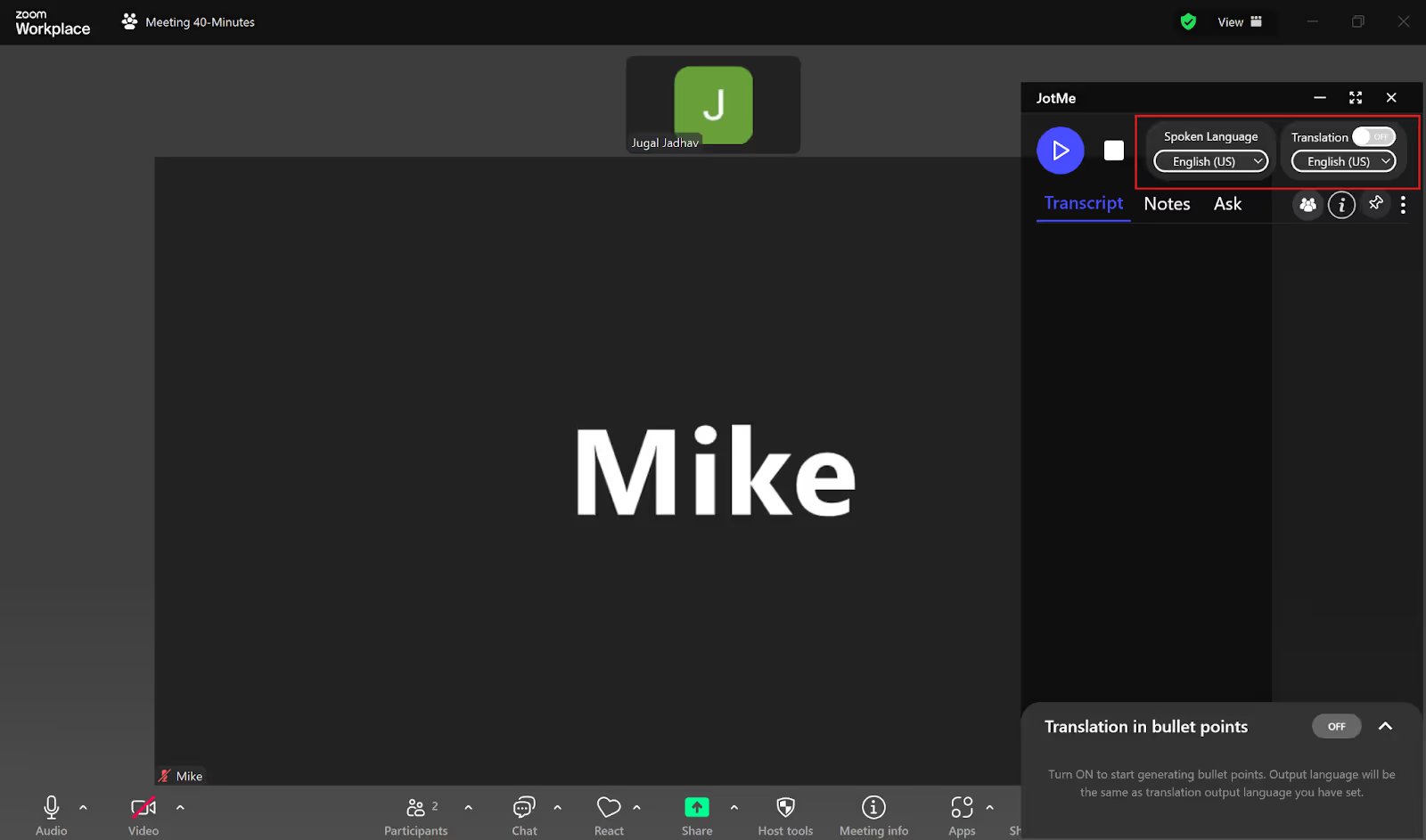
- Select the Transcription Language: Set the “Spoken Language” to the language spoken in the meeting and the language you want the live transcription in. Turn the “Translation” option off if it’s on.
- Start the Live Transcription: Tap the “Play” button to start the live transcription.
Step 1: How to Install the JotMe app on Your Device?
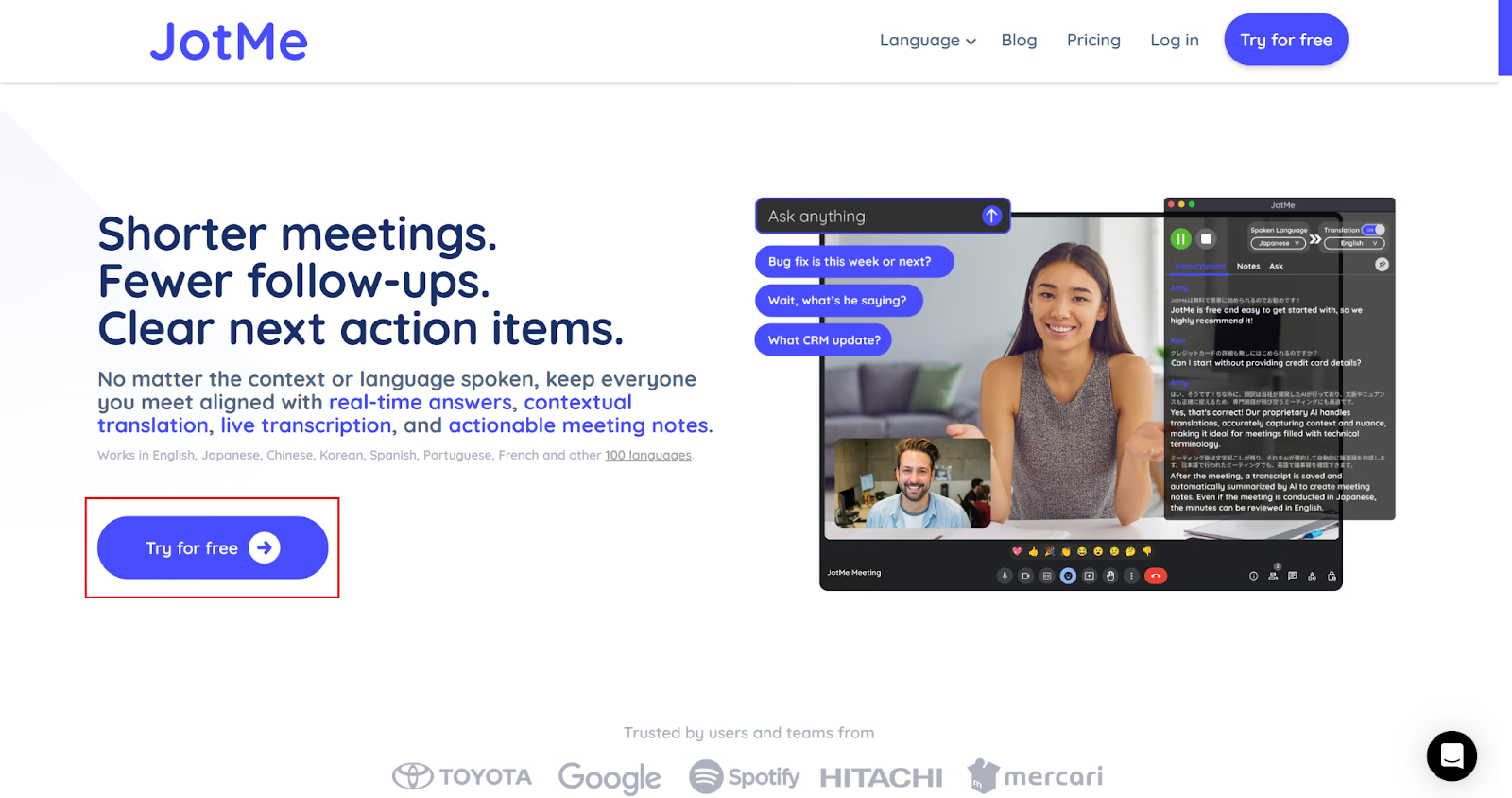
To download the JotMe app, visit their official website and click on the “Try for free” option to download the setup on your Mac or Windows device. Then, run the setup and follow the instructions to complete the installation.
Step 2: How to Launch a Zoom Meeting & Use JotMe?
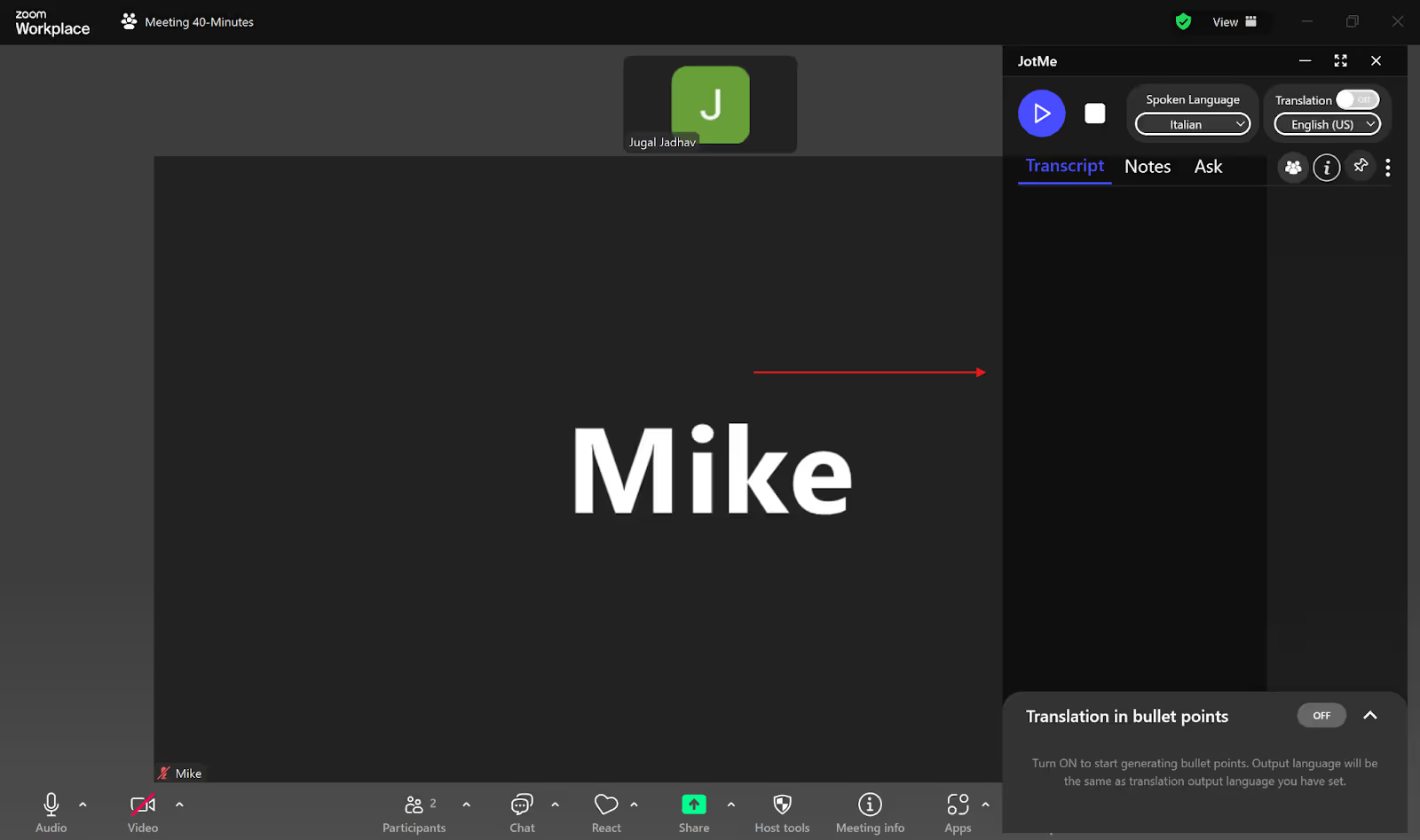
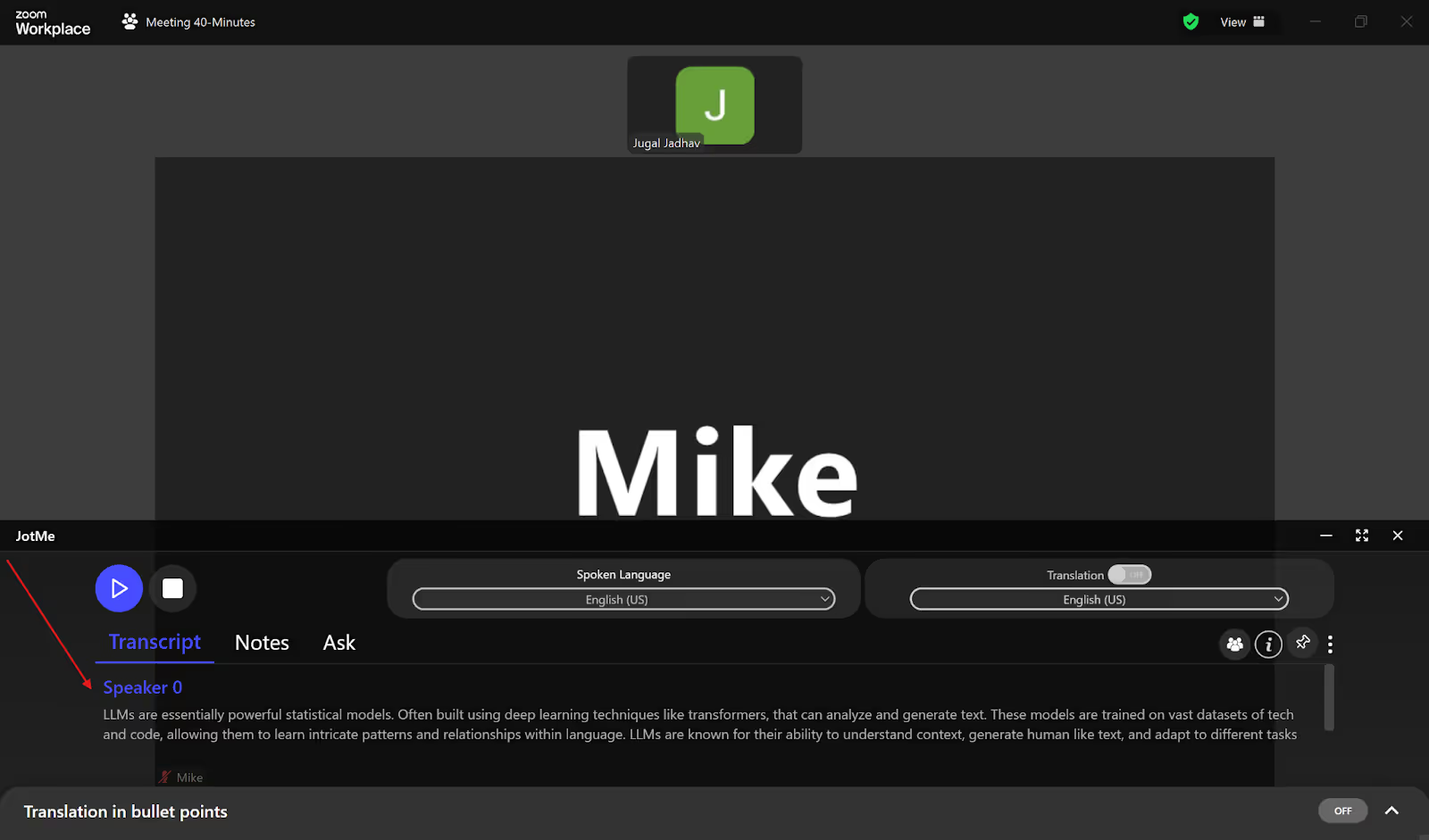
Use the Zoom Workplace desktop app or the web browser to launch or enter your Zoom Meeting. Next, open JotMe. The window will open on the right, as seen in the image below.
Step 3: How to Select the Transcription Language in JotMe?
On the top right of the JotMe window, you’ll see a “Spoken Language” option. From the drop-down list, select the language of the speaker in the meeting; you’ll get the transcription in this language. Make sure to turn off the “Translation” button if it’s on.
Step 4: How to Start the Live Transcription?
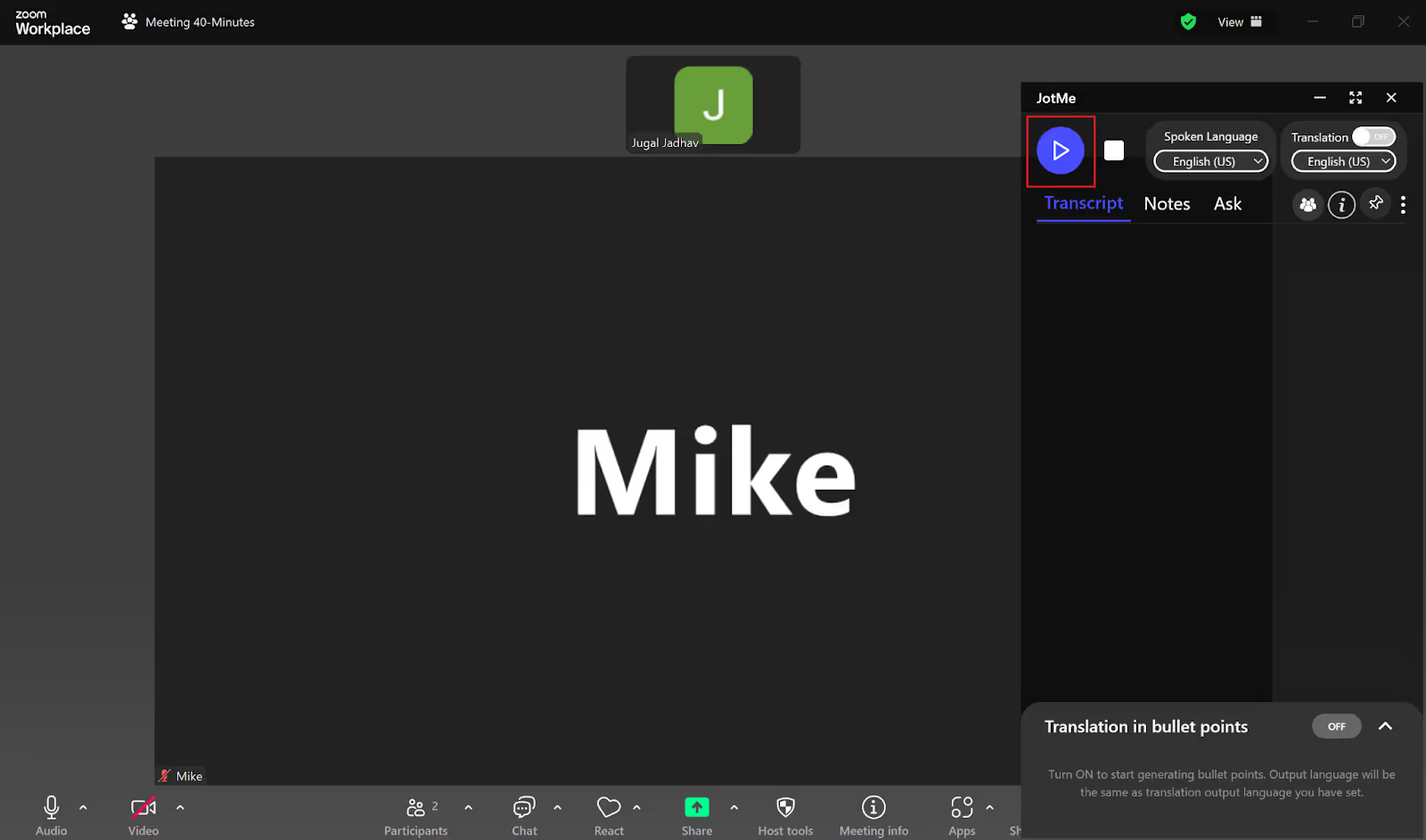
Now that you’ve selected the language, simply tap on the “Play” button on the top-left to start the live transcription.
You’ll start getting the live transcription as soon as you click the “Play” button and the speaker starts speaking. You’ll also get the entire transcript of the meeting in the JotMe dashboard once it’s over.
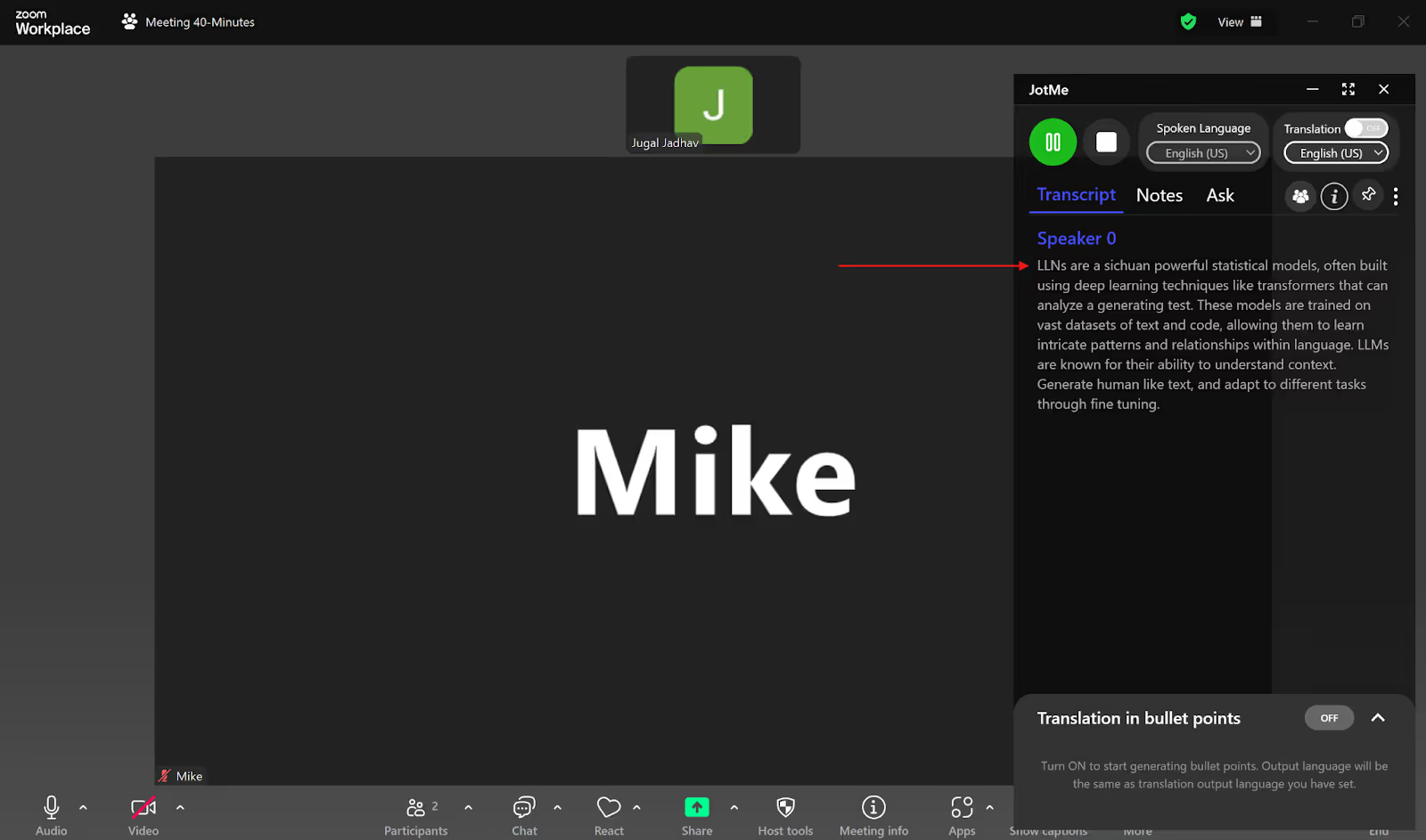
You can also resize the JotMe window to view the live transcription in standard caption format.
Does Zoom Have a Built-in Audio Transcription Feature?
Yes, Zoom offers various options for closed captioning in meetings, like manual captioning, automated captions, or captions provided by an integrated third-party closed captioning service that you can use to follow the conversations easily. Zoom’s audio transcription automatically transcribes the meeting’s audio that you record to the cloud. The transcript is saved as a separate VTT file in the list of meeting recordings.
Additionally, you can use live call transcription with your admin’s permission to easily follow your call conversations. The speaker’s audio is converted into a text caption, displaying their names and timestamps for your reference. However, these features come with some limitations:
- Premium Account Needed: You need a Zoom Pro, Business, Education, or Enterprise account to enable audio transcription for Zoom cloud recordings. However, with third-party tools like JotMe, you can do live transcription for free. JotMe offers 50 minutes of transcription per month in its free plan, along with post-meeting transcripts and notes.
- Inaccuracy: Zoom’s real-time transcription can be inaccurate because of industry terms and dialects specific to a geography or community. Even the automated captions can be inaccurate in sectors like healthcare. But JotMe’s NLP and speech recognition technology understands the industry-specific terms and also supports dialects of a language to provide accurate and contextual transcription in real time.
- No Transcript Retention: Zoom doesn’t retain the transcripts you create with the call live transcription feature. However, tools like JotMe store the transcripts in the dashboard and provide access to them immediately after your Zoom meeting.
How Does JotMe Help You Transcribe Zoom Meetings?
According to MarketsandMarkets, the global speech-to-text API market is estimated to reach $5.4 billion by 2026, which includes live transcription in virtual meetings. This will eventually increase the demand for live transcription tools like JotMe. JotMe goes beyond live transcription of Zoom meetings by providing simultaneous transcription in multiple languages, an AI chatbot, post-meeting notes and transcripts, etc. Let’s take a look at these features in detail:
Live Multilingual Transcription
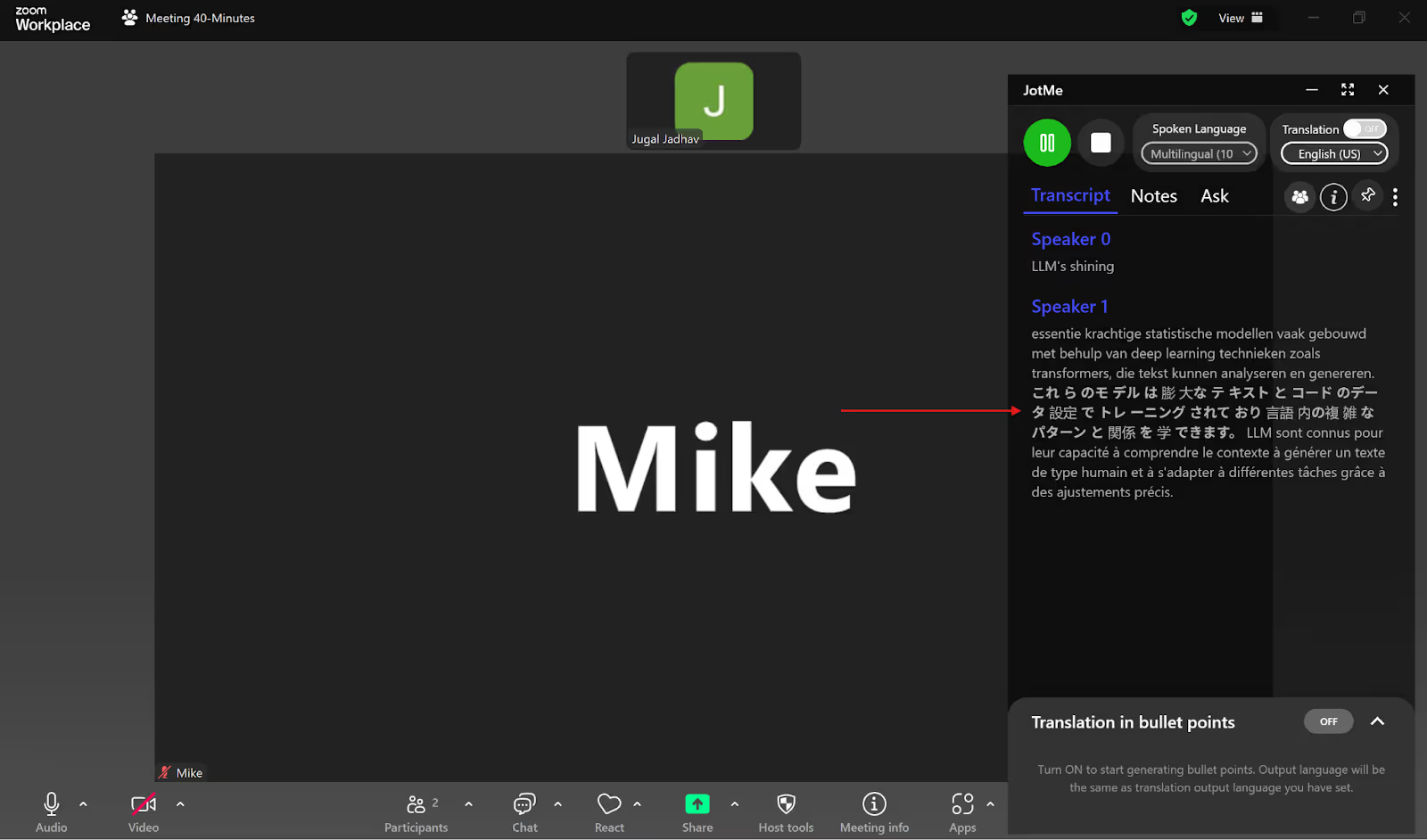
Suppose you have a call with your global clients, and everyone speaks a different language. JotMe handles this by live transcribing up to 10 languages simultaneously, including Japanese, Dutch, Italian, Russian, English, and more. Just set the “Spoken Language” in the JotMe window to Multilingual and watch as JotMe transcribes multiple languages in real time. With the live transcripts by your side, you would never get lost in the conversation.
AI Chat
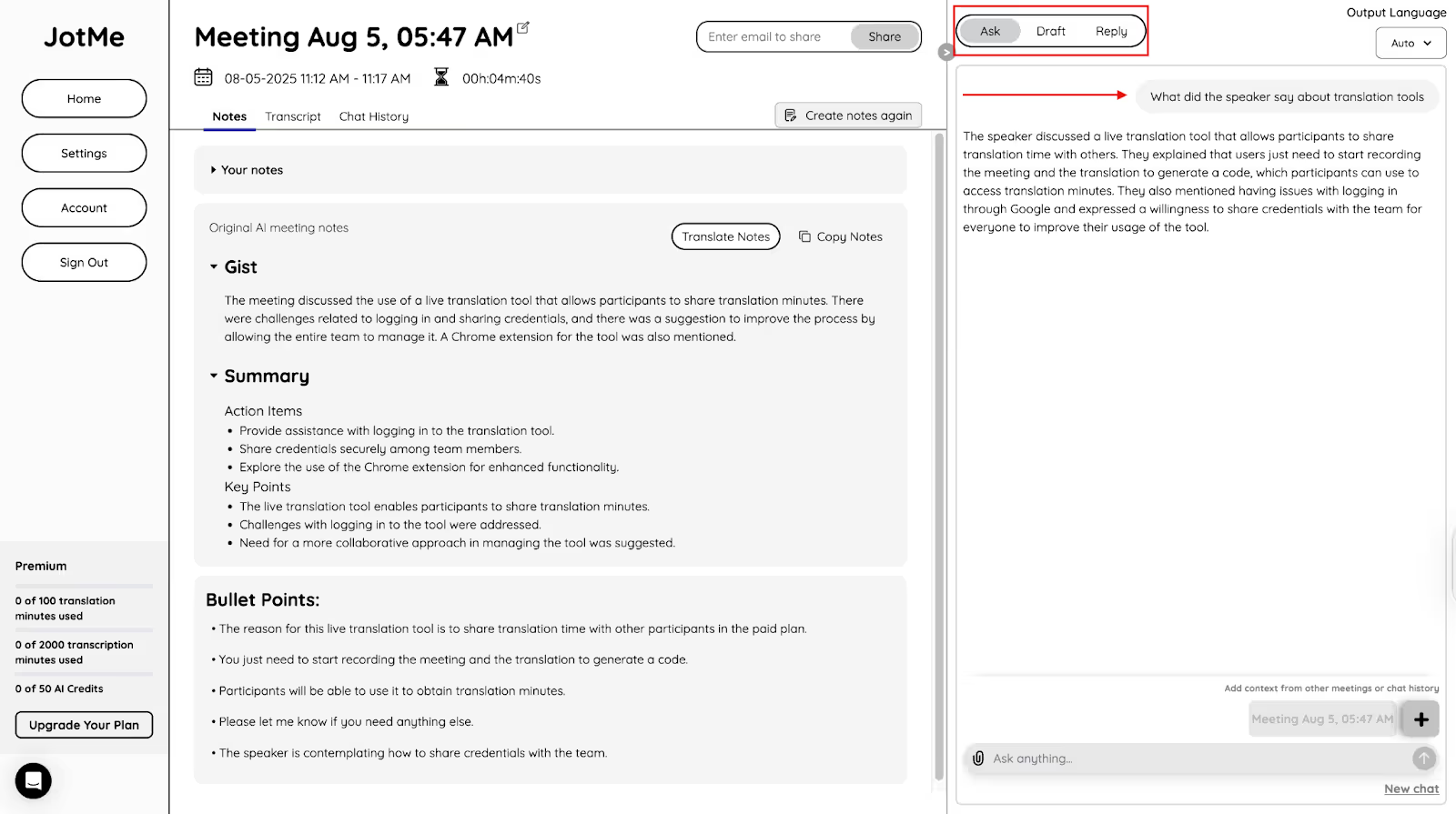
Still got questions after the meeting is over? Let JotMe help you with them. Once the meeting is over, you can ask the AI any questions regarding the meeting in the JotMe dashboard. Other than that, you can create a draft for a blog, social media post, email, document, and tons of other things in your preferred language. You just have to specify the topic and can also provide a sample draft, structure, or template. You can also generate AI replies for a Slack or LinkedIn message, email, social media comments, and more.
Post-meeting Transcripts
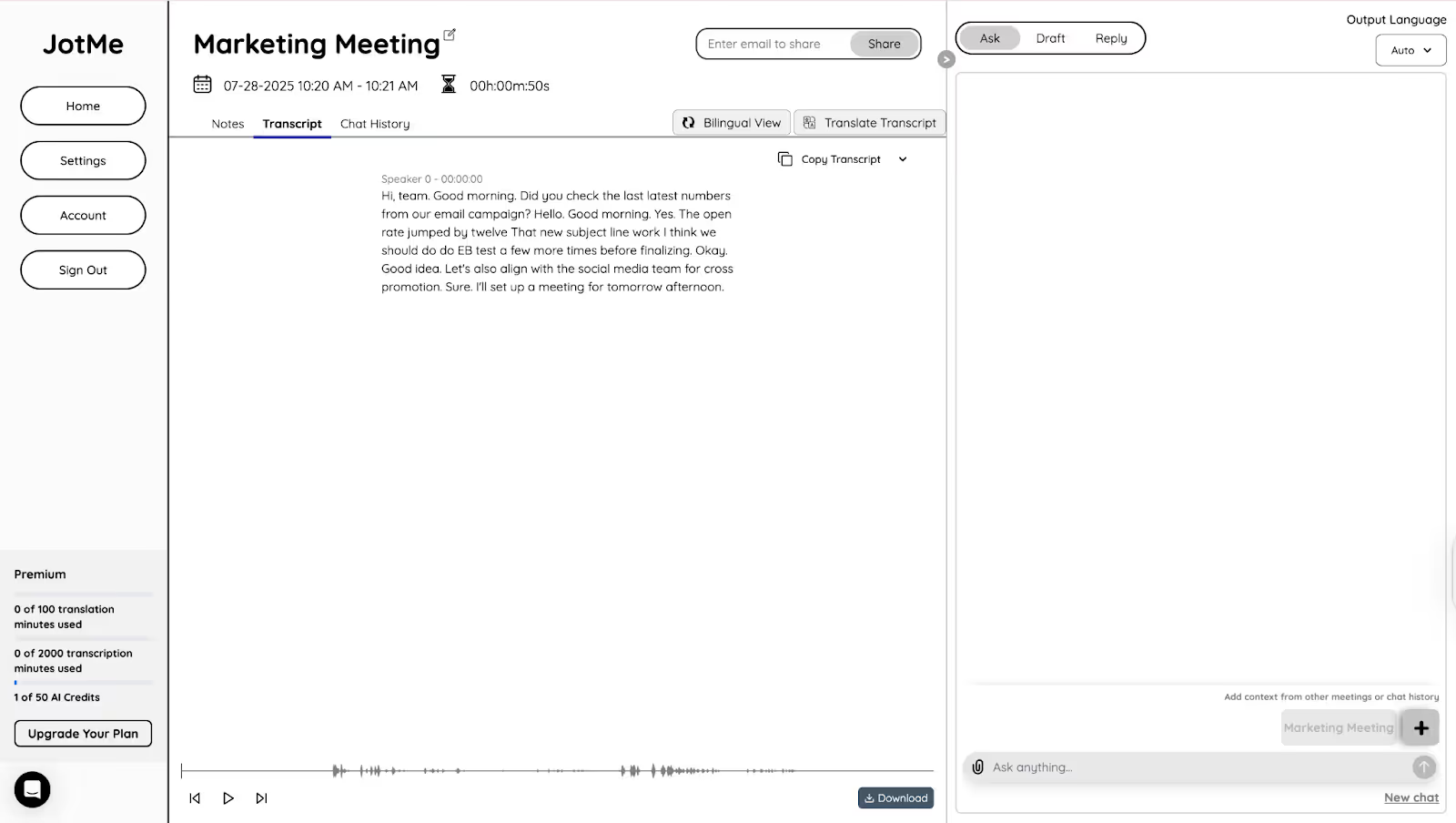
If you’re looking to comb through your conversation to plan your next meeting agenda, JotMe makes it easy. It provides time-stamped transcripts immediately after your Zoom meetings. These transcripts help you verify details from your Zoom meetings so you don’t have to worry about missing important points. You can even translate the transcripts into your preferred language using AI credits.
AI Meeting Notes
Do you panic when you have to focus on the meeting and also take manual notes? It’s common to go through this. According to a Zoom survey, 48% of leaders said that they take more time to take meeting notes than they want.
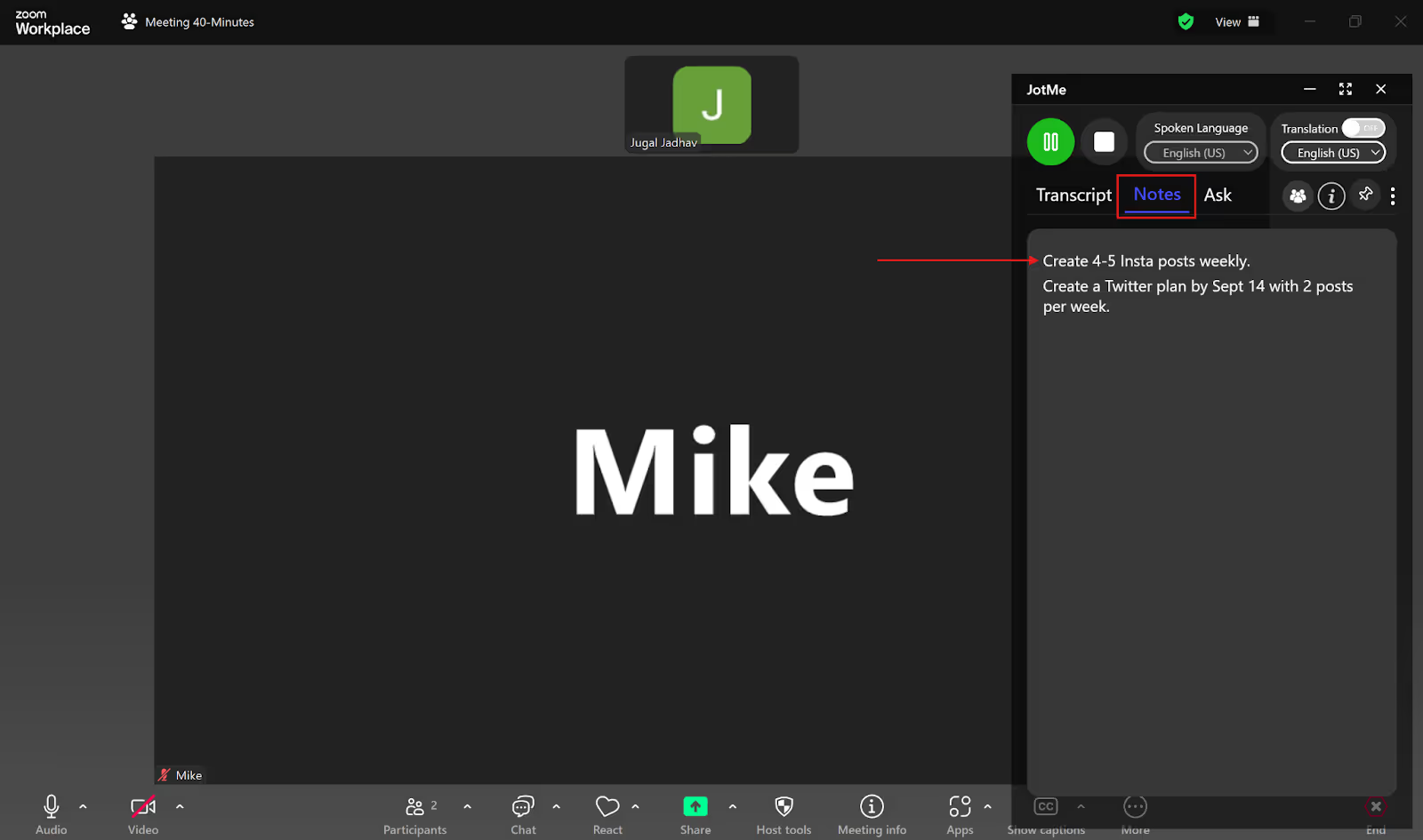
If you take notes during the meeting in the “Notes” section, JotMe will create post-meeting notes and summaries based on your points.
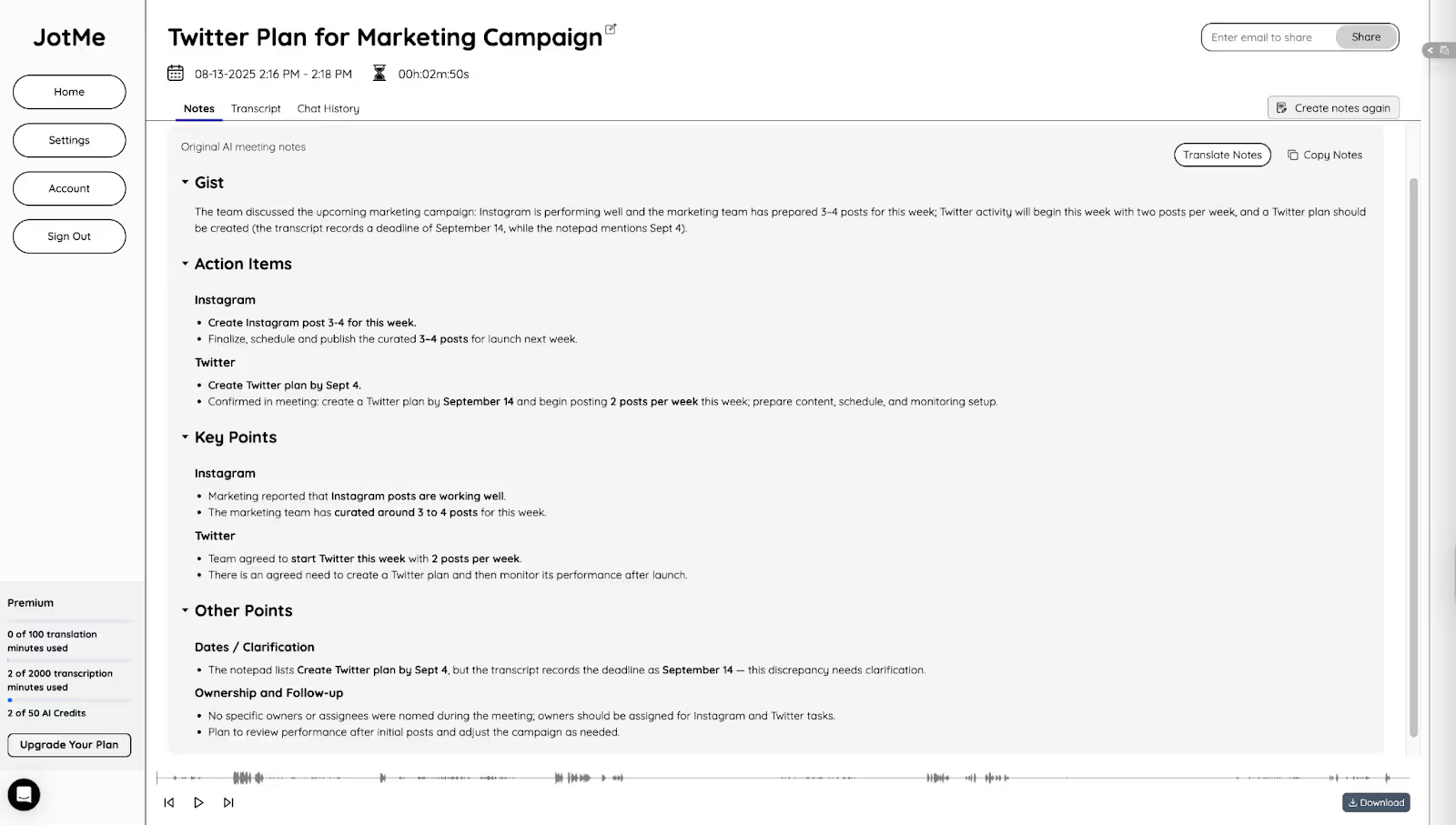
JotMe simplifies the process by generating AI summaries and notes that highlight key points and next steps from your entire Zoom meeting. You can even translate the notes into your preferred language.
Best Way to Get Quality Live Transcription in Zoom Meetings
You can now easily get live transcription in your Zoom meetings with its built-in features or using third-party tools like JotMe. Apart from this, here are some things you can do at your end to get quality live transcription in Zoom Meetings:
- Encourage Speakers to Follow Meeting Rules: Make clear rules for the participants to follow during your Zoom meetings. Encourage them to speak one at a time to avoid speech overlapping and maintain clarity and speed while speaking, so that the translation tools can easily catch what’s being said.
- Sit in a Quiet Room: A noisy environment can make it difficult for the participants to hear you clearly and even the translation tools may not recognize your speech. So make sure you sit in a place without background disturbance or use a noise-cancelling headset to cut out the background noise.
- Use Third-Party Tools: Zoom’s built-in transcription feature and automated captions for meetings often deliver inaccurate transcriptions and require a paid plan for audio transcription. So use third-party tools, like JotMe, that offer accurate, multilingual transcriptions in real time in 45 languages, and that too for free.
JotMe’s free plan offers 50 transcription minutes per month as well as access to AI-generated notes, summaries, and transcripts right after your Zoom meetings. JotMe also lets you translate the post-meeting notes and transcripts into your preferred language with just a few clicks.
Try JotMe today for free and get accurate transcriptions in real time in multiple languages.
FAQs
How do I transcribe my Zoom meeting for free?
You cannot transcribe a Zoom meeting for free; you need Zoom’s paid plan for it. However, with third-party tools like JotMe, you can get a live transcription of your Zoom meeting for free. You just have to select the language spoken in the meeting, and JotMe will instantly start the transcription in real time.
Can you get a transcript of a Zoom meeting after it’s over?
Yes, you can get a transcript of a Zoom meeting after it’s over, but only with Zoom’s paid plan. However, with live transcription tools like JotMe, you can get it for free. JotMe provides live transcription and translation in 45 languages and also gives you transcripts of the meeting in your preferred language once it’s over.
Can AI transcribe Zoom meetings?
Yes, AI tools, like JotMe, can transcribe Zoom meetings. JotMe supports 45 languages for transcription and translation in real time. Along with that, you also get post-meeting notes, summaries, transcripts, and more.
What is the best Zoom transcription app?
JotMe is the best Zoom transcription app, offering real-time transcription and translation in 45 languages. JotMe also offers multilingual transcription, where it can transcribe up to 10 languages simultaneously, including Russian, German, Spanish, English, Japanese, and more.
Last updated on
April 16, 2026
Follow us on social media: